
Path to function: Preferences > Redirector
On this page, optionally specify IP addresses that are permitted to bypass authentication via the redirector. If a user from a permitted IP address follows a redirector link, they are automatically directed to the requested content for IP authentication without needing to authenticate through single sign-on. (See How the redirector works.)
This feature enables users in a designated bypass zone, such as a library on campus, to go directly to the resources they request. Users located outside the zone, such as students working from home, are prompted to authenticate through OpenAthens. By using bypass with the redirector, you don’t need to create separate access routes for on-site and off-site users.
|
User follows redirector link |
||
|
Location recognised |
|
Location not recognised |
|
↓ |
|
↓ |
|
Pass directly to resource
|
|
Authenticate through OpenAthens
|
|
↓ |
|
↓ |
|
Access |
||
Bypass works with any resource that has an access URL. (Resources lacking an access URL are indicated by an 
If your domain has sub-organisations, you can optionally configure different IP addresses for different sub-organisations. This is useful if the sub-organisations are geographically dispersed and/or have different requirements for IP authentication.
You can also exclude specific resources from bypass. If you exclude a resource, users will always have to authenticate into that resource through OpenAthens regardless of their IP address. This setting is available only to domain owners.
When a user bypasses authentication based on their IP address, their request does not go through the OpenAthens authentication point. This has the following consequences:
-
The request is not logged in statistics reports
-
Restrictive mode does not apply
Administrator permissions
If you have the Owner role, you can configure bypass for the whole domain and for sub-organisations. You can also specify individual resources to which bypass does not apply.
If you’re an organisation administrator, you can configure bypass only for the organisation(s) that you administer. You cannot exclude resources from bypass.
Specify permitted IP addresses
-
Log into the Compass admin area as an administrator. Domain owners can configure bypass across the whole domain. Organisation administrators can configure bypass only for the organisation(s) they administer.
-
(Optional.) To configure bypass for a specific sub-organisation, switch to the required sub-organisation before you begin. (If you’re an administrator for only one sub-organisation, your sub-organisation will be selected by default.)
-
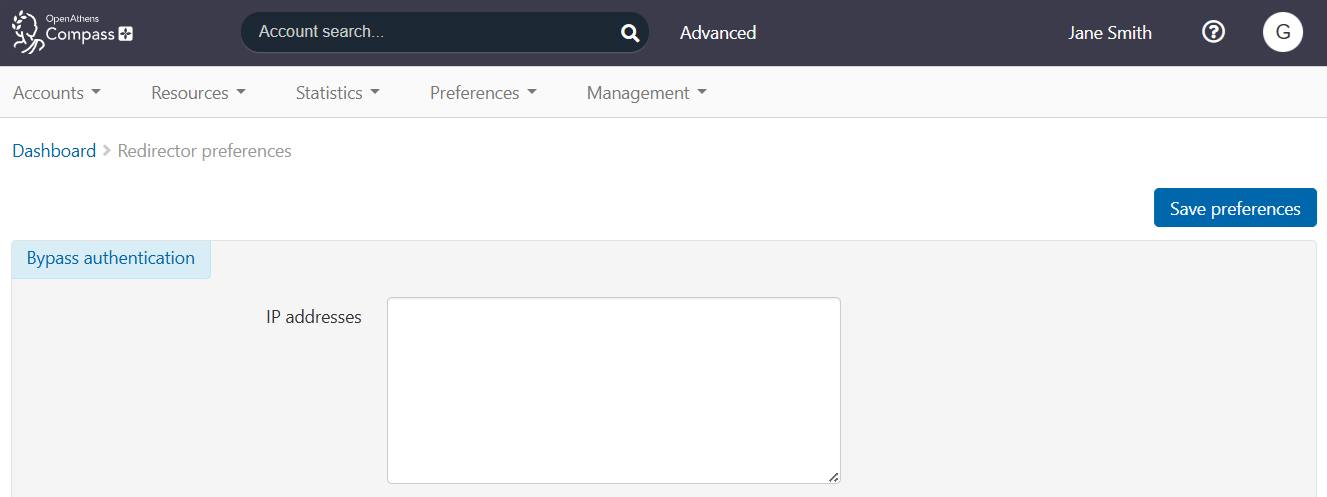
Go to Preferences > Redirector.
-
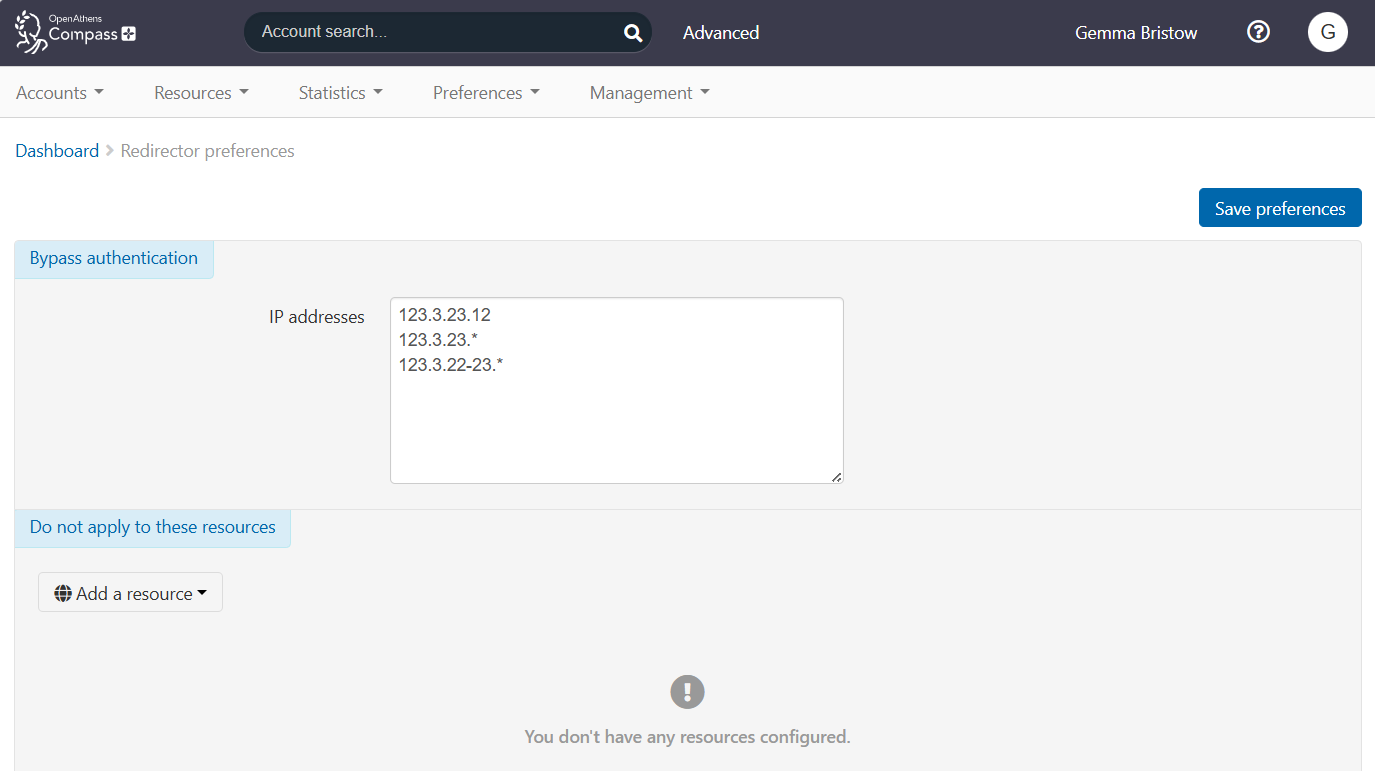
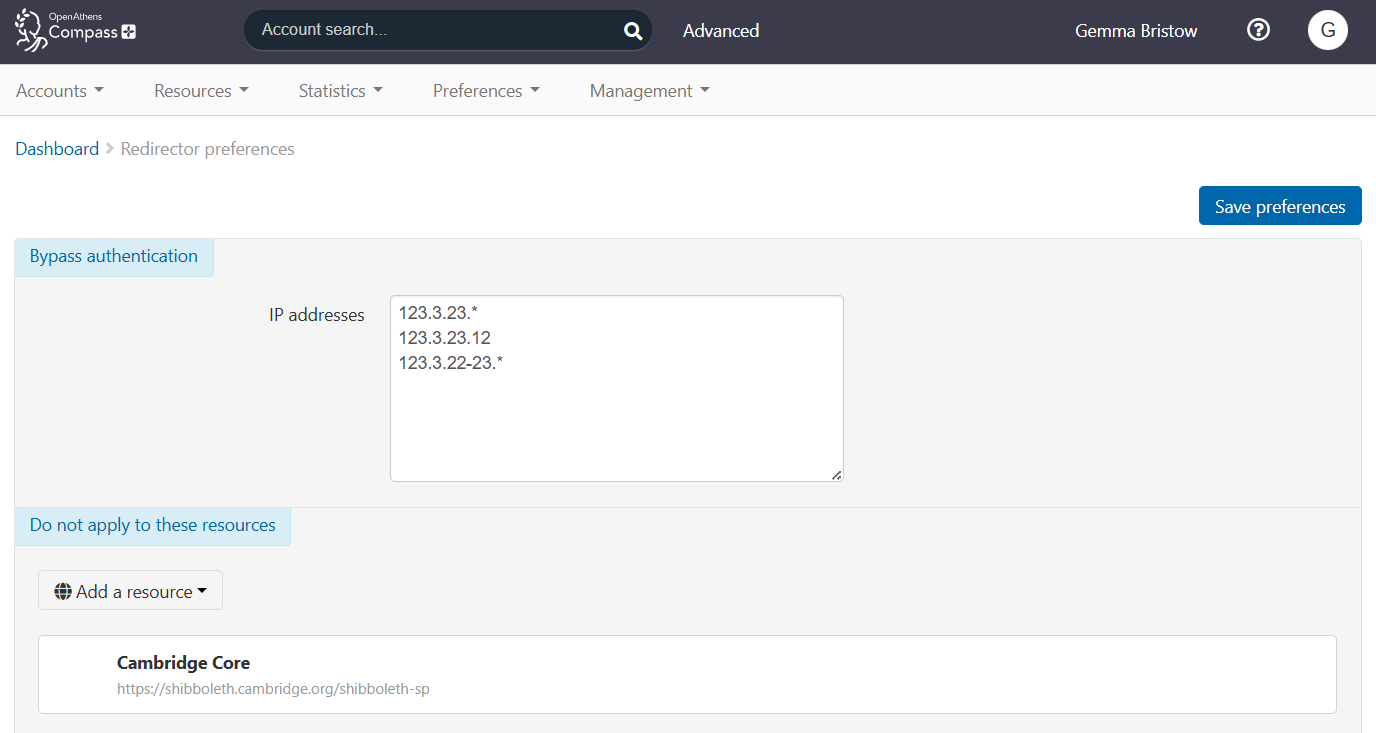
In the IP addresses field, enter each IP address from which users can bypass authentication. To enter multiple IP addresses, type each one on a new line. For example:
123.3.23.12 123.3.23.* 123.3.22-23.* -
Press Save preferences.
To specify an IP range, use a wildcard (e.g. 123.3.23.*). You can include wildcards only in the last two octets of the address.
See also How to recognise unsuitable IP address formats.
We do not support CIDR notation for writing IP addresses.
Exclude resources from bypass (domain owners only)
If required, you can exclude specific resources from bypass. Users will always have to authenticate into those resources through OpenAthens, regardless of their IP address. This feature is useful if you use restrictive mode, if a resource doesn’t permit IP-based authentication, or if you want all transfers to the resource to be recorded in statistics.
To exclude resources from bypass, you must be a domain owner. Exclusions apply across the whole domain and can’t be configured for individual sub-organisations.
-
Log in to the Compass admin area as a domain owner.
-
Go to Preferences > Redirector.
-
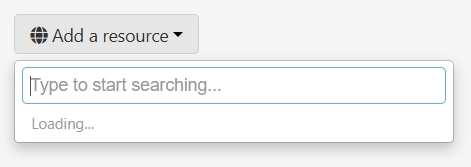
Under Do not apply to these resources, click Add a resource. A search field opens.
-
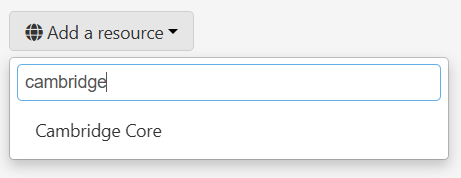
Start typing the name of the resource you want to exclude. Select the required resource from the list of search results.
-
The selected resource is added to a list below. Press Save preferences to finish.
Remove a resource from the excluded list
-
Log in to the Compass admin area as a domain owner.
-
Go to Preferences > Redirector.
-
Hover over the resource in the list. A Remove button appears.

-
Pres Remove.
-
Press Save preferences to confirm your changes.
Anything to watch out for?
When users are passed directly to a resource through bypass, they do not pass though the OpenAthens authentication point. This means no statistics are recorded. It also means that restrictive mode (if used) will not apply.
Locations covered by redirector IP addresses rely on a resource's IP authentication for access. You need to take care to match the ranges you specify with what your resources permit.
-
If you specify a range of addresses that is too big - i.e. includes addresses that are not IP authenticated by your resources - then users may find themselves in a location where they cannot gain access
-
If you specify a range of addresses that is too small - i.e. does not cover all the addresses that are IP authenticated by your resources - then users may find themselves asked for OpenAthens credentials unexpectedly
Changes here are affected by the cache times of two separate components, so could take as much as 14 hours to become live (though they will usually be faster).