
MyAthens is a user portal that is available to all OpenAthens customers. It comes in two tiers: MyAthens Basic, and an optional upgrade to MyAthens Plus which has more features.
Sub-organisations will generally use the same MyAthens setup as their parent organisation. If you subscribe to MyAthens Plus and you have a sub-organisation with its own scope, that sub-organisation can configure MyAthens separately - if that is something you would like to do, speak to your account manager.
Path to function: Management > MyAthens
Users access MyAthens at https://my.openathens.net, where they can choose to search for their home organisation or use the generic authentication point. In most cases, users will have a better experience by searching for their organisation regardless of their account type.
MyAthens can also be accessed using a WAYFless URL. This is the recommended approach if you are publishing a link on your own pages or recommending a bookmark as it will bypass the part where they have to search for their organisation to sign in. Your WAYFless URL is specific to your organisation and can be found in the configuration tab. It is not the same as the WAYFless URL for old MyAthens.
The Account page
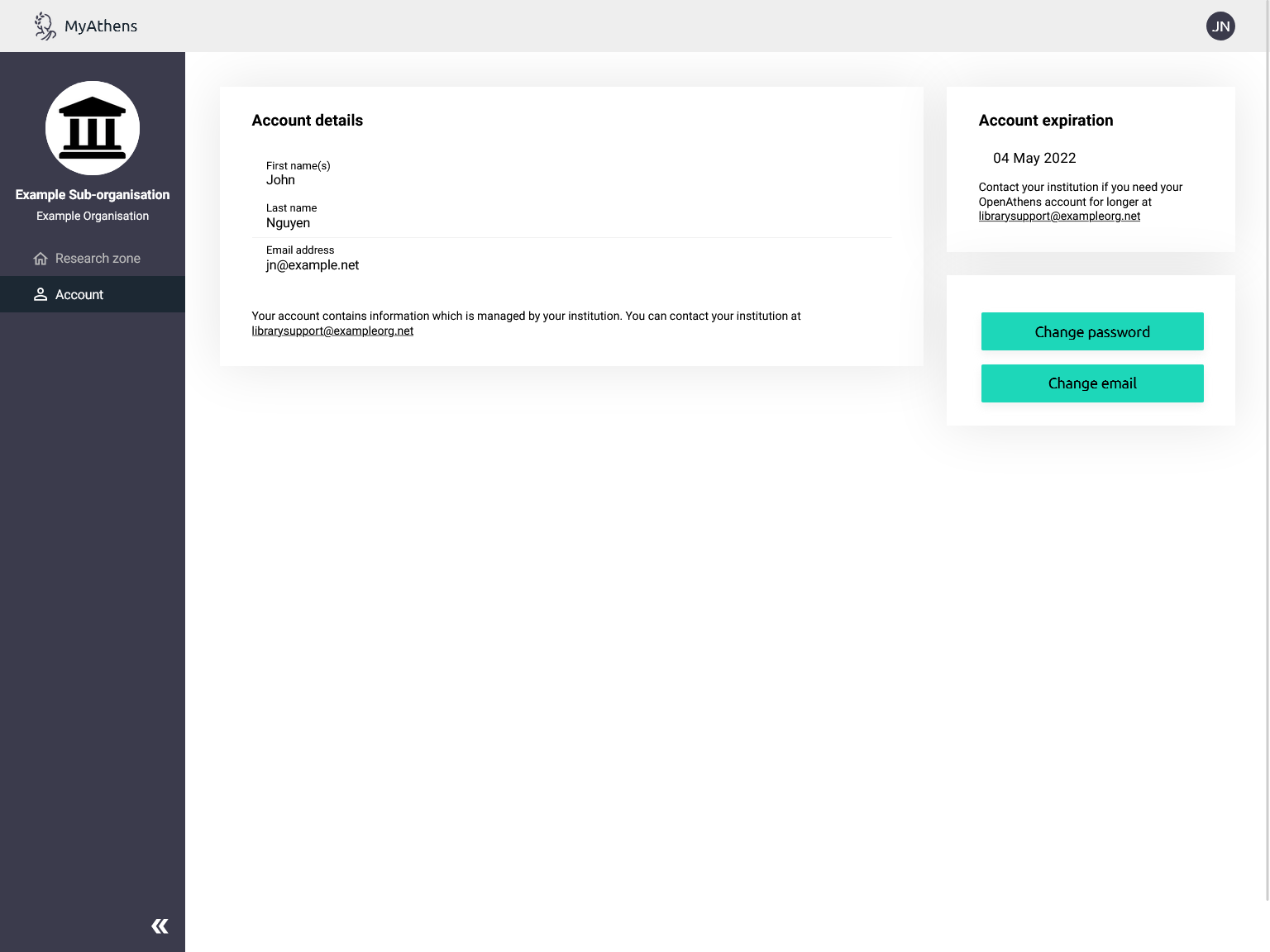
This page displays the user's account details. Users with personal accounts can view their account expiry date and change their password here. They will usually spend all their time on the other page...
The Research zone
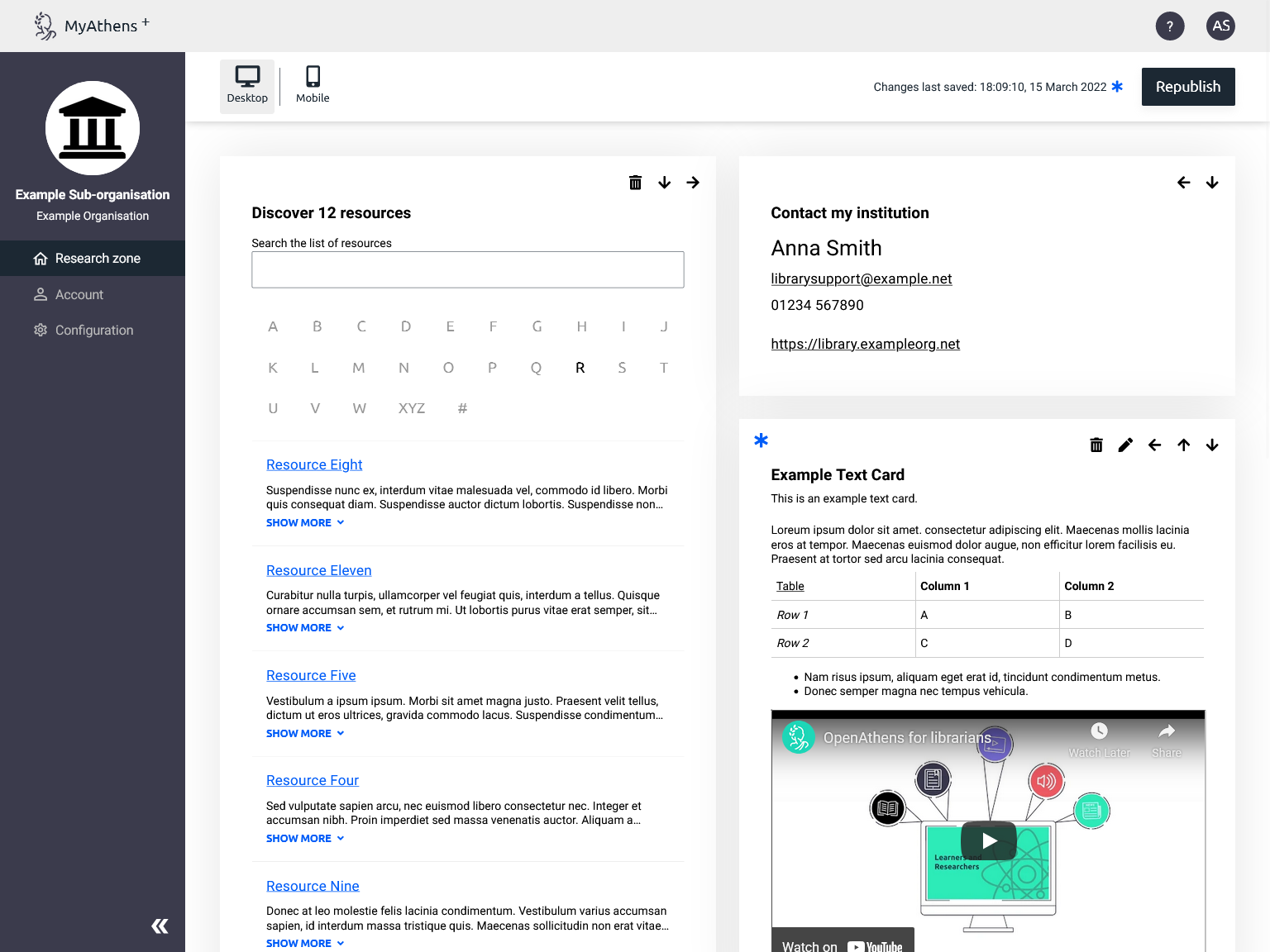
The research zone is the main page where you can add content and information to be displayed to your users in the form of cards.
Adding and removing cards
There are six different card types that can be available:
|
|
Basic has |
Plus has |
|---|---|---|
|
Contact details |
1 |
1 |
|
Text |
1 |
Many |
|
Button |
1 |
Many |
|
List of resources |
n/a |
1 |
|
Curated list of resources |
n/a |
Many |
|
Content discovery |
n/a |
Many |
You can add a new card using the button at the top or bottom of the page. New cards will initially appear at the bottom of the left column.
You can remove cards using the trash icon in the corner of the card. When a card is removed, it is permanently deleted. You cannot remove the contact details card unless there is a button or text card present.
Card layout
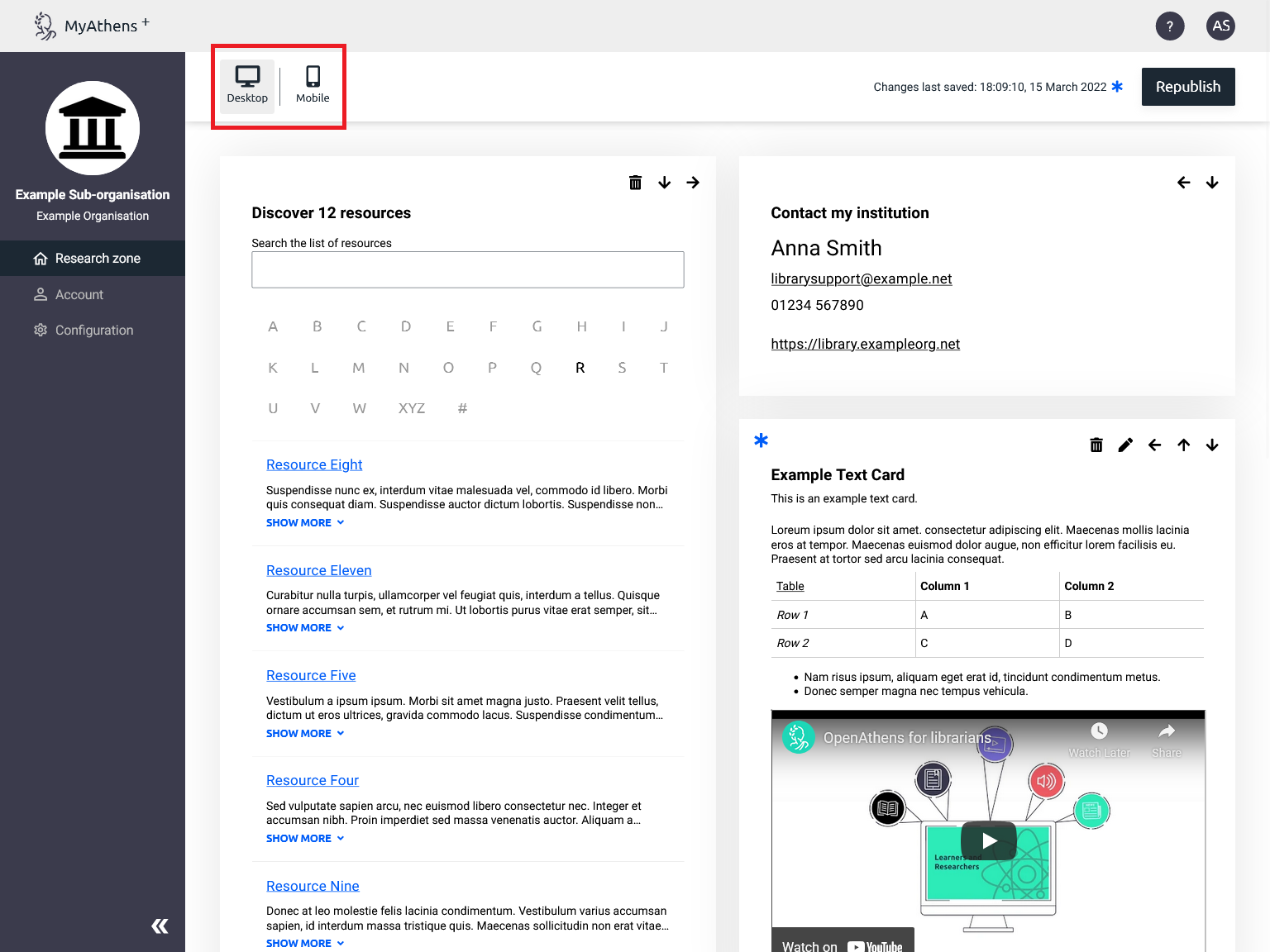
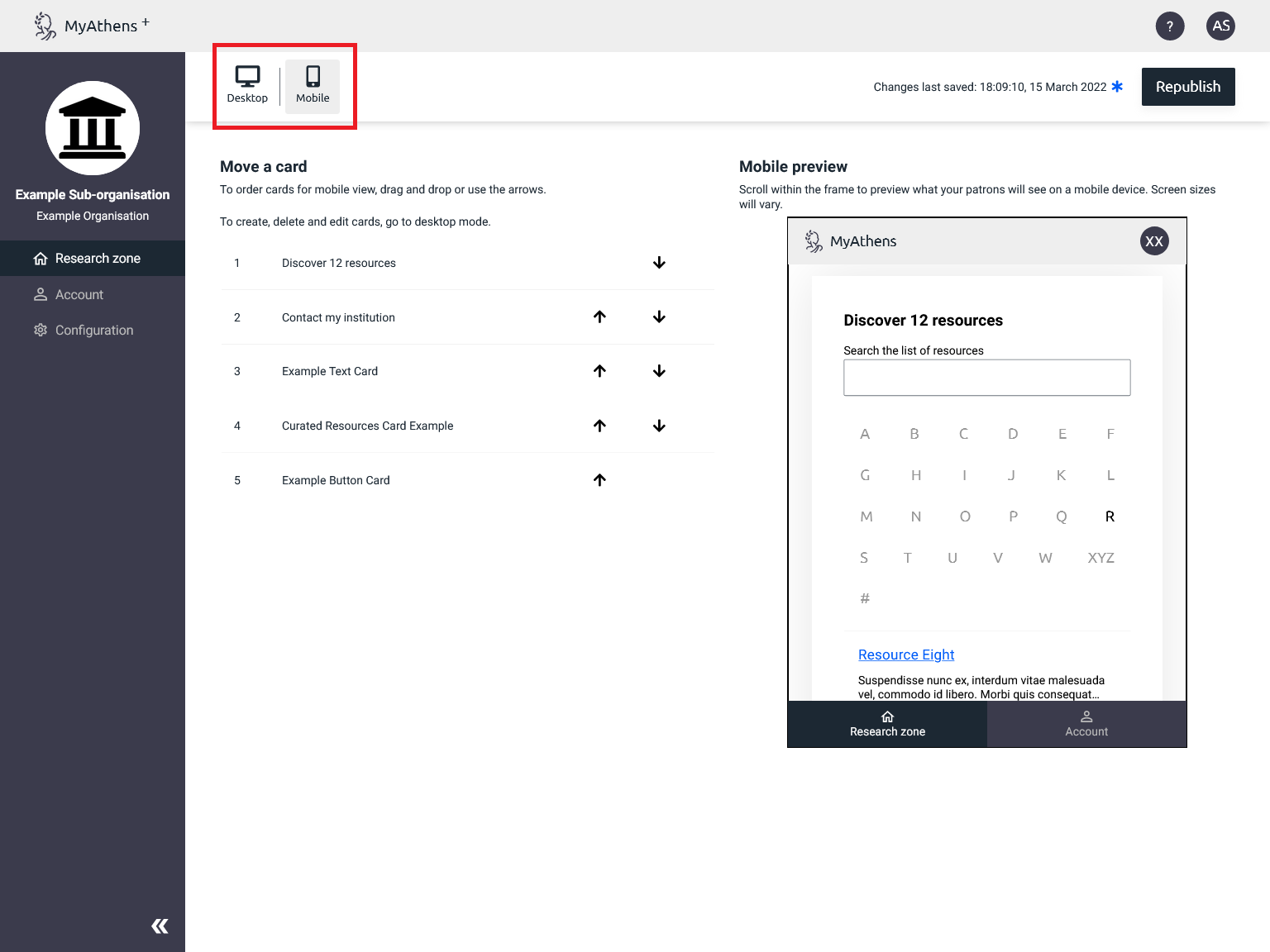
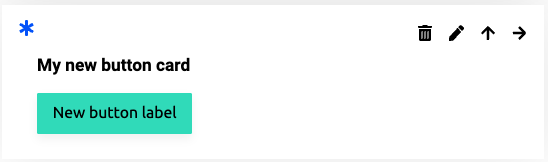
You can change how the cards will be displayed on the page by using the arrows in the corner of the card. There are two layouts which you can view using the buttons at the top of the page - desktop has two columns and mobile has one:
Publishing
Any changes you make are saved automatically but aren't visible to your users until you publish the changes. Changes won't appear until the next time a user signs in, so if you're testing this you may need to sign out.
Published configurations cannot be unpublished and deleted cards cannot be recovered.
Configuring the cards
General cards
These cards are available in both MyAthens Basic and MyAthens Plus. MyAthens Basic has a limit of one card of each type. In all cases, at least one of Text, Contact details, or Button card must be present.
Contact details
A card that contains your organisation's public contact details as set in your organisation preferences. This card can only be removed if there is a text or button card present.
Text card
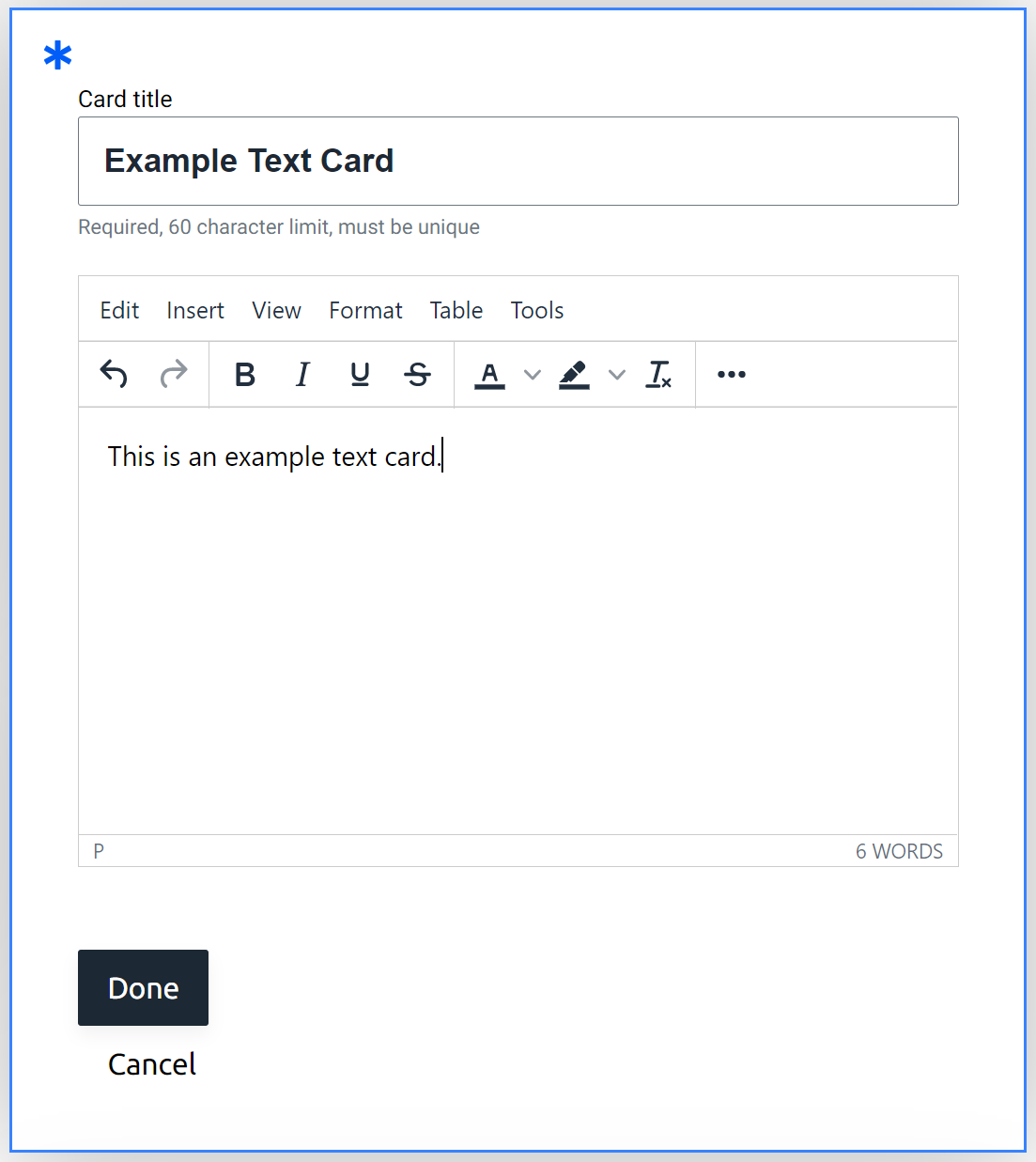
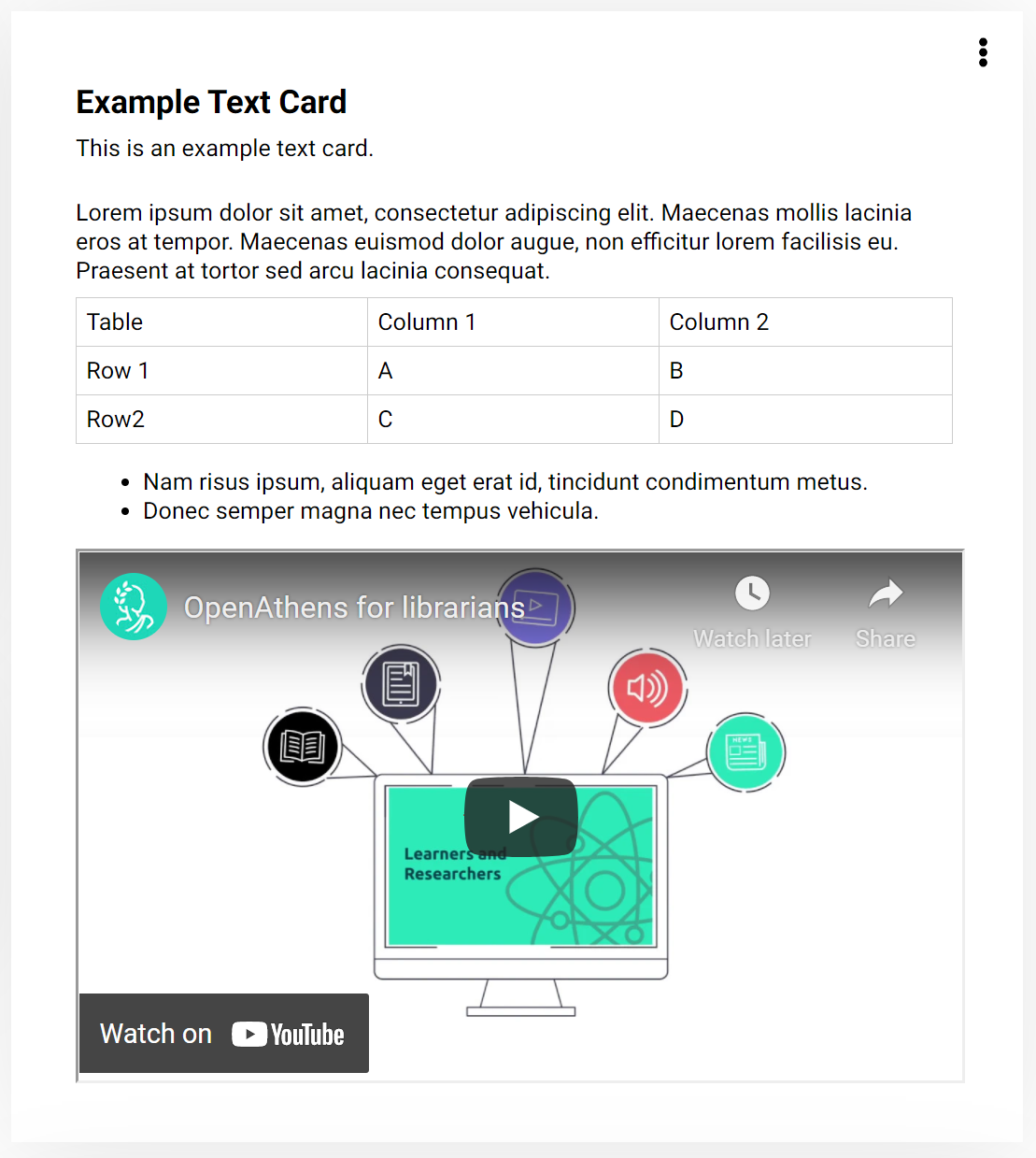
A card that can contain text, links, images, and embedded videos from YouTube or Vimeo. Use this for things like library information or links to resources that can't go on other cards - e.g. free or OpenAccess resources.
You can access options such as hyperlinks, tables, fonts and colours through the ellipsis button or the menu at the top of the editor.
Hovering over a button will tell you what it's for. Perhaps the most useful is the one on the right that looks like Tx because that one clears formatting including lots of invisible background things that come with the text if pasted from something like MS Word (whilst usually helpful, the background things can sometimes cause problems on web pages). There's also a paste as text option under the edit menu which we recommend leaving ticked for the same reason.
Button card
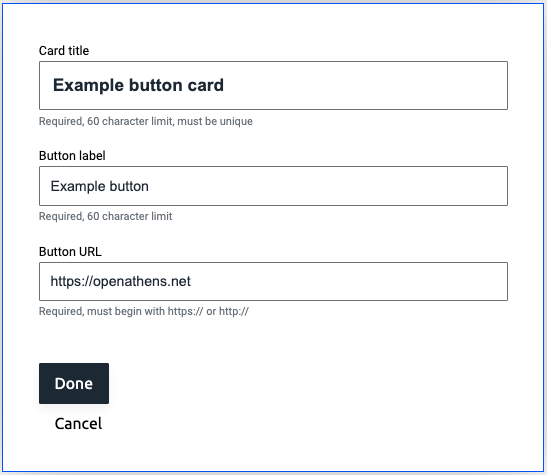
A card with a single customisable button. Use this for things like links to your own support portal or other library applications.
Extra cards in MyAthens Plus
As well as being able to have more than one button card or text card, MyAthens Plus has these additional card types
List of resources
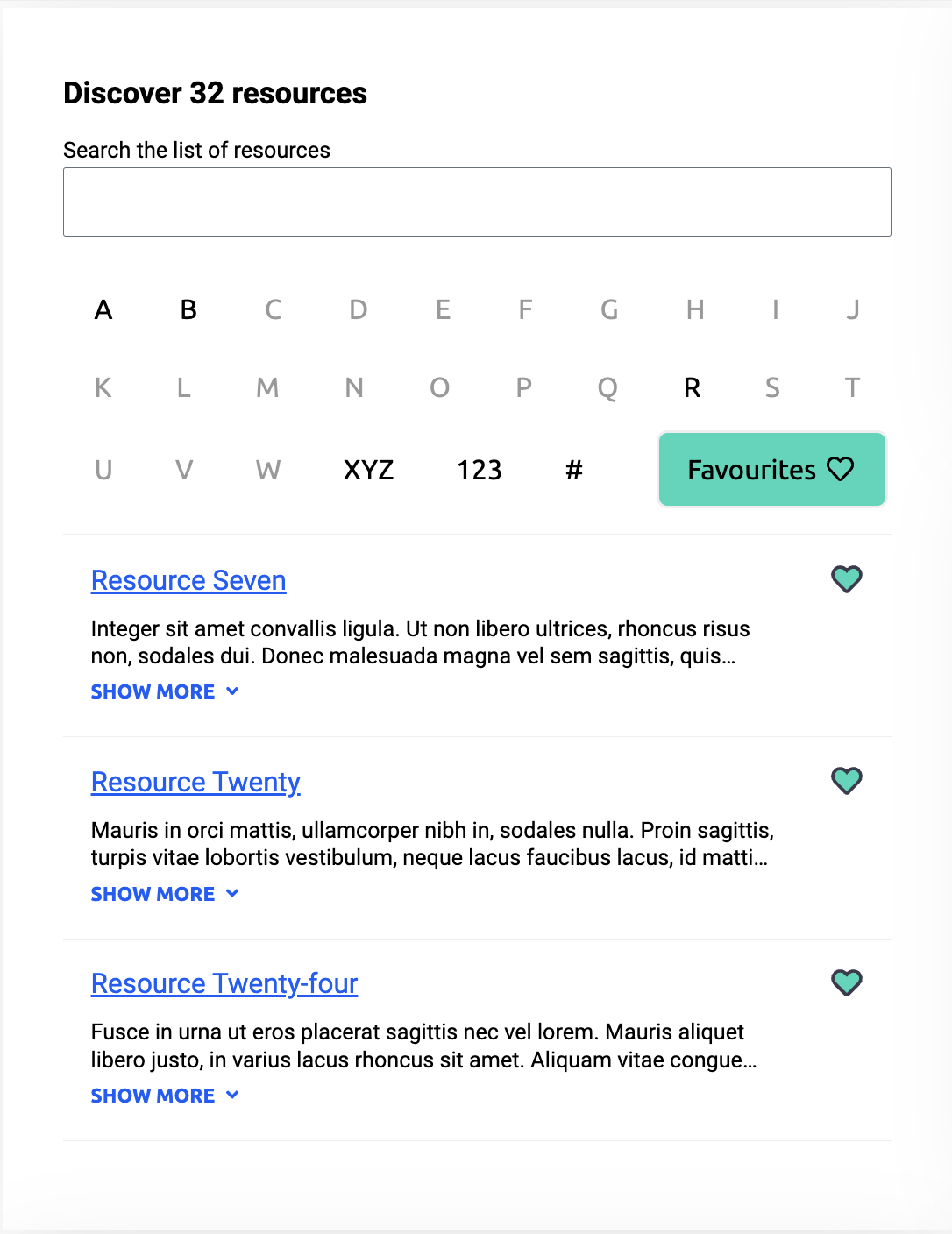
An alphabetical list of all of the resources in your catalogue that share a permission set with the user, including custom resources.
Resources can be hidden from this list without the need to remove them from sets by using the hidden from users flag in the resource catalogue. Users can mark resources as favourites, search for them by name or description or jump to a letter.
Curated list of resources
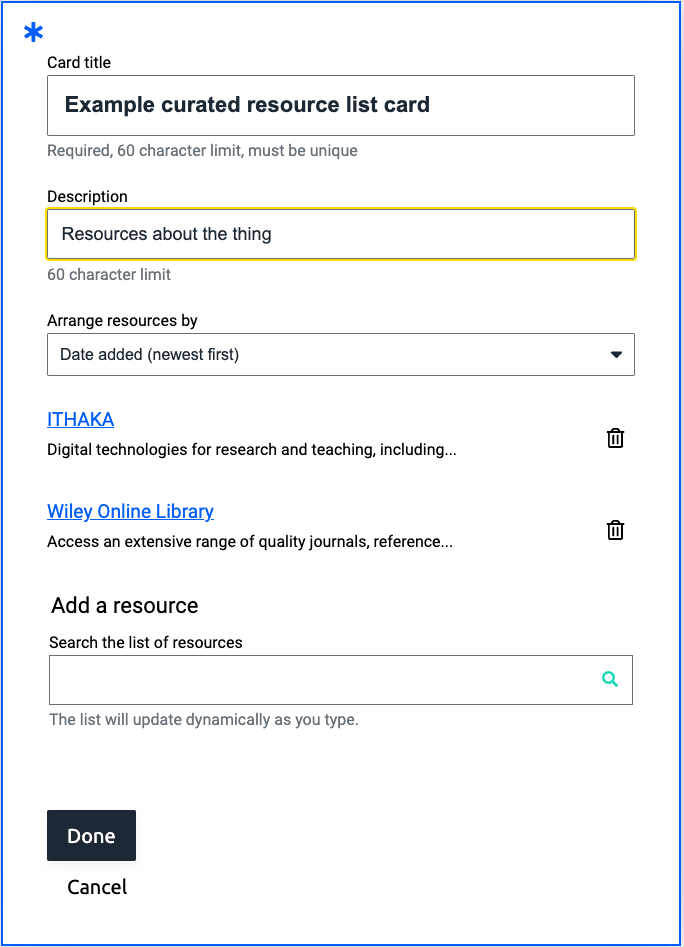
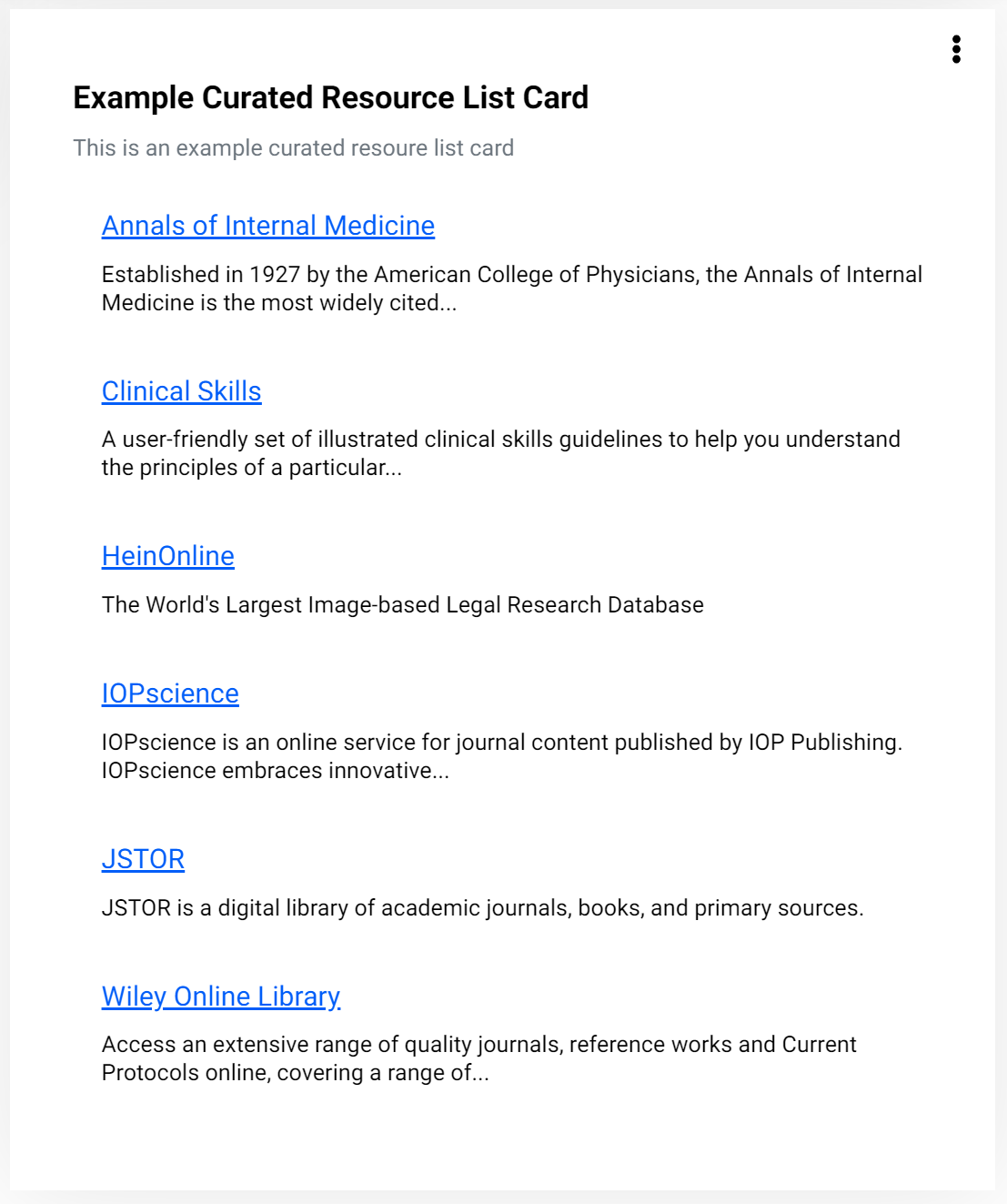
Whilst the resource list displays all, this type allows you to curate subsets of the the resources that are allocated to your user's permission set(s). You might use this to split out resources that are aimed at the humanities or sciences without preventing a user from accessing either.
Any resource in your catalogue may be added to a curated list but they will only be displayed to end users if the resource and the user share a permission set. You can choose to show them in alphabetical order, oldest to newest or newest to oldest (this sorting is by when added to the list and doesn't appear until you save).
Content discovery widget
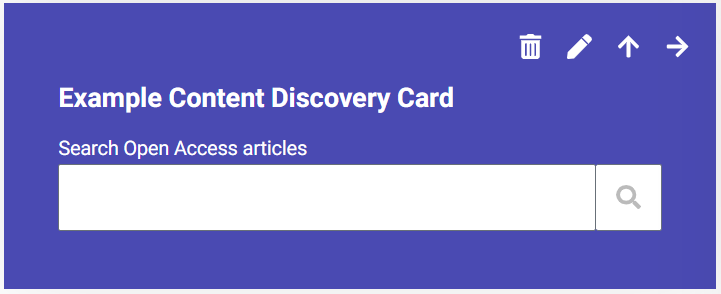
A search box linked to a content discovery service. The discovery services that it currently supports are EBSCO Discovery Service, EBSCO Publication Finder, TDNet Discover, Google Scholar, and for Open Access resources: CORE Discovery.
The first three only work in conjunction with those services, but Google Scholar and CORE are more widely available:
-
CORE (you don't have to be in the UK)
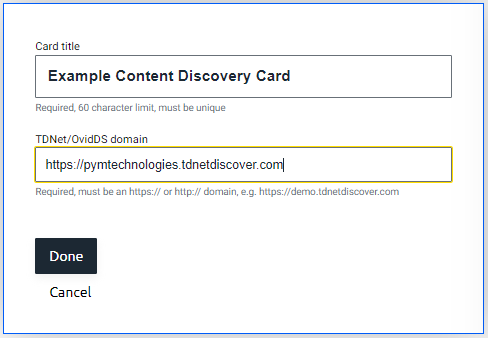
The TDNet one will ask for a customer domain, e.g. https://pymtechnologies.tdnetdiscover.com
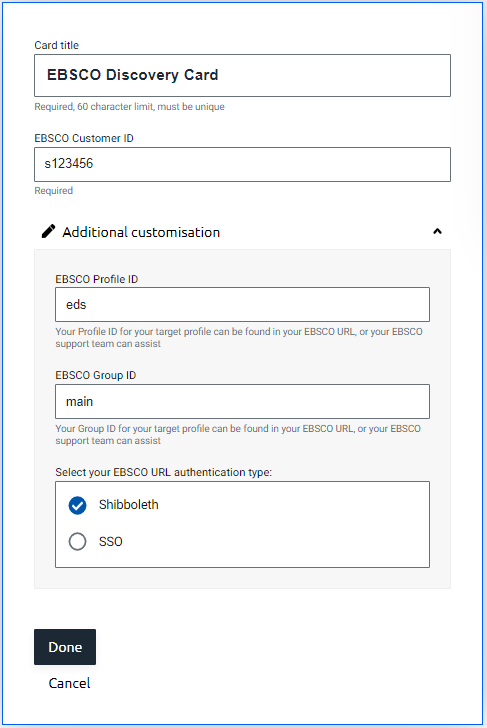
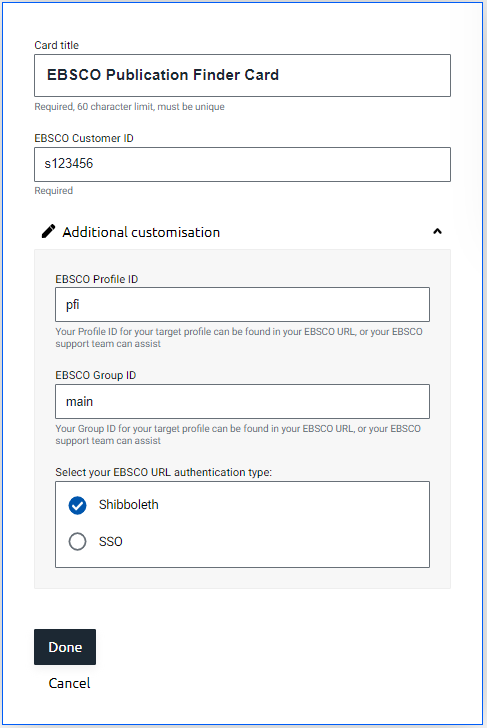
The EBSCO panels will ask for a customer ID, e.g. s123456. You can also provide a custom Profile ID, Group ID and authentication type under the additional customisation dropdown. The values are in your EBSCO portal.
Administrator configuration
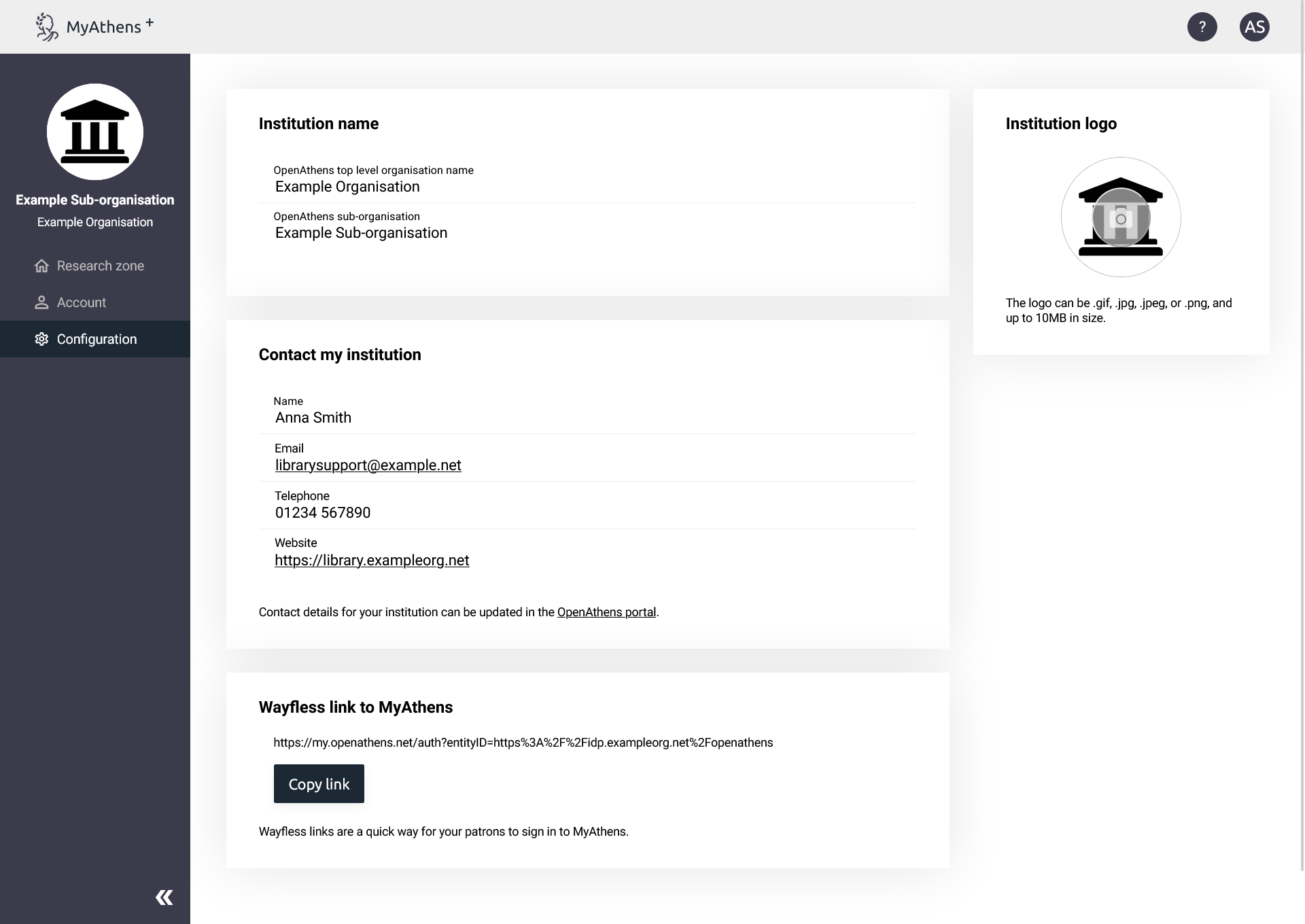
This page is only visible to administrators and shows the contact information that will be displayed to users in the Research Zone. The contact details and institution name are those set in your organisation preferences.
MyAthens uses the logo from your domain preferences but you can override it here if necessary - perhaps you have a version that looks for better on the darker background.