
Set up an application in OpenAthens
-
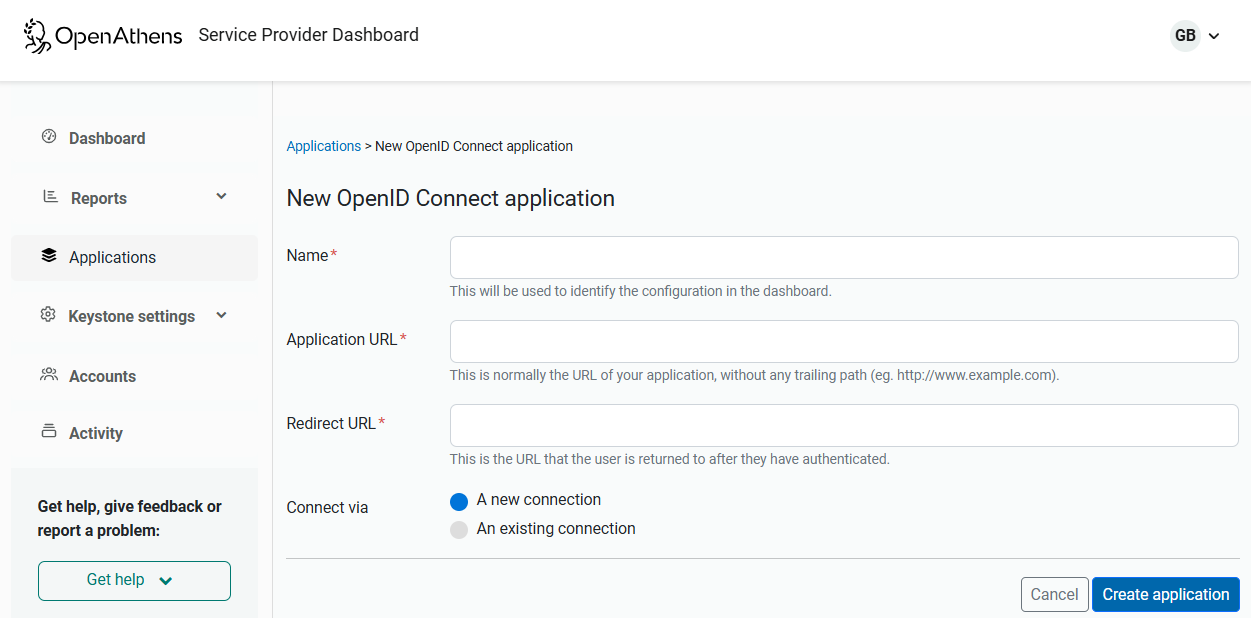
Create an application in the OpenAthens Service Provider dashboard. See:
-
In the Redirect URL field, enter a placeholder URL for now. You will update this field later, after configuring Auth0. Fill in the other fields as required.
-
Save the application.
-
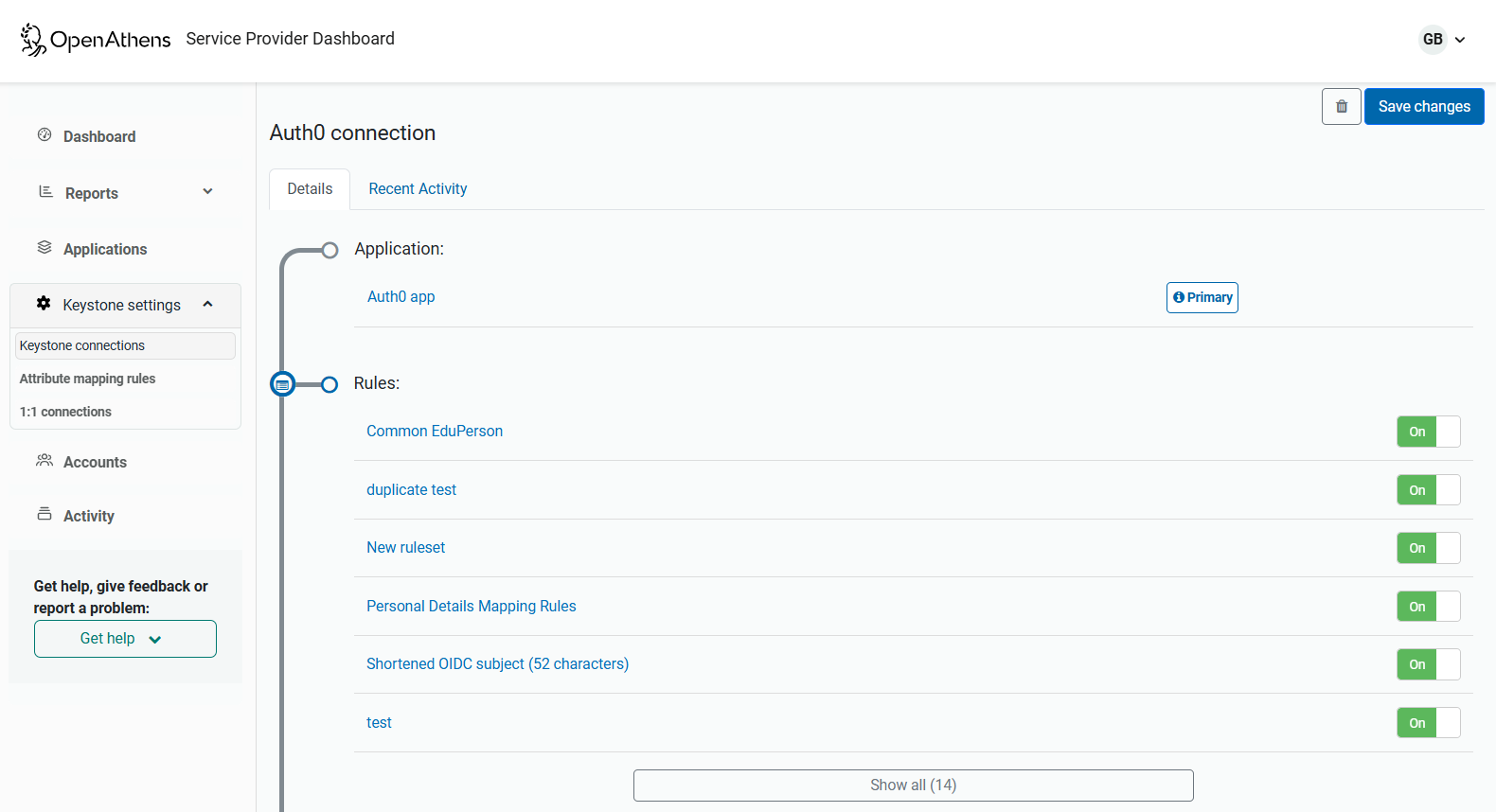
Go to Keystone settings > Keystone connections and select the connection for your new application.
-
In the Rules section of your connection details, turn on Shortened OIDC subject (52 characters). (You might need to click Show all to see this rule.)
-
Save your changes.
Configure Auth0
Log in to your Auth0 dashboard and configure the required settings, as described in the Auth0 documentation.
You can find the ClientID and Client Secret in the OpenAthens Service Provider dashboard (Applications > [select your application] > Configuration tab).
Update the redirect URL
Back in the Service Provider dashboard, update the Redirect URL of your application with the correct URL from Auth0.
You can now test authentication.