
You can map the names and values of SAML attributes to those of OIDC claims. Mappings are defined by rulesets that can be switched on or off for the Keystone connection that an application uses. If a connection is used by multiple applications, its mapping rules will apply to all of those applications.
A ruleset includes one or more individual mapping rules. If you know, for example, that you will always want to map attribute A to claim B at the same time as mapping attribute X to claim Y, you can create a single ruleset that includes mapping rules for both.
Default rulesets
The following rulesets are preset and available for use straight away. You cannot edit or delete these rulesets.
To see more information about a default ruleset, go to Keystone settings > Attribute mapping rules and click on the name of the ruleset.
|
Name of ruleset |
Function |
Turned on by default for new Keystone connections? |
|---|---|---|
|
|
Separates out
|
Yes |
|
|
Maps all SAML attributes to claims with the same target name (e.g. urn:oid:1.3.6.1.4.1.5923.1.1.1.9 - see eduPerson attributes)
|
Yes |
|
|
Maps the four most commonly used SAML eduPerson attributes to friendly claim names ( |
No |
|
|
Maps all of the less common SAML eduPerson attributes. Not typically required |
No |
|
|
Included to help service providers migrate older services. Not necessary for new applications |
No |
|
|
Adds the IdP entityID and SP entityID to the end user's
|
No |
|
|
Sends an extra claim to your application ( |
Yes |
|
|
Enables pseudonymous user identifiers (
|
No |
Many eduPerson attributes can be multi-valued. For example, a user might have roles of “student” as well as “member”. For these attributes, you should expect to receive unordered arrays, e.g. { "claimName" : [ "value1", "value2"] }.
Custom rulesets
You can create additional rulesets to extend your mapping capabilities. There are two types of custom ruleset:
-
Simple: contains one-to-one mapping rules. At the basic level, a simple rule can map a named SAML attribute (e.g.
emailAddress) to a named OIDC claim (e.g.email). You can also create more complex rules that map only part of an attribute’s value, or that match attributes by using regular expressions rather than literal names -
Scripted: a ruleset in which the criteria and outcome are defined using JavaScript. Scripted rules can include advanced conditions and calculations. To create a scripted ruleset, see Mapping SAML attributes to OIDC claims with Javascript
Simple rule examples
|
Type |
Incoming |
Outgoing |
Notes |
|---|---|---|---|
|
Name |
|
|
Changes the attribute name |
|
Value |
|
|
Removes all but the domain part of a scopedAffiliation value or email address |
|
Name |
|
|
Strips everything before the final slash in a name and replaces it with mynamespace - e.g. changes |
Create a simple ruleset
To add an attribute mapping ruleset, you can either create the ruleset from scratch or clone an existing ruleset to use as a base. (Not all of the default rulesets can be cloned.)
Create a simple ruleset from scratch
-
Log in to the Service Provider Dashboard as an administrator.
-
Go to Keystone settings > Attribute mapping rules.
-
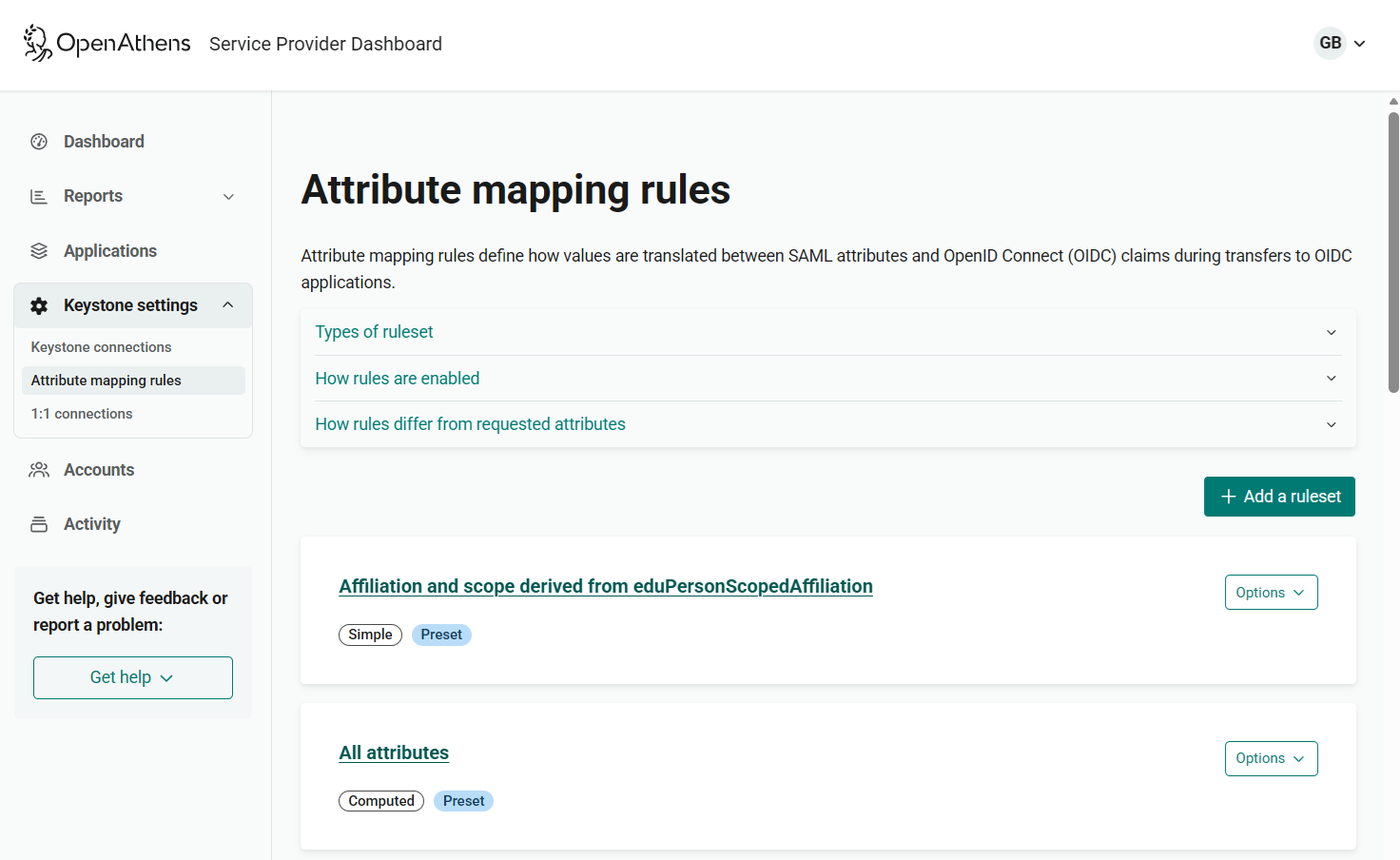
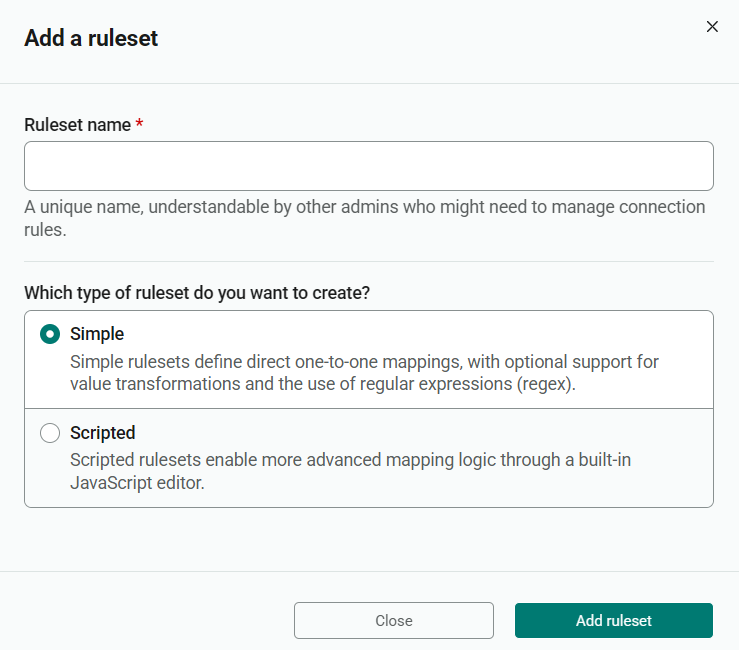
Click the Add a ruleset button. A dialog opens.
-
In the Ruleset name field, enter a descriptive name for the ruleset. The name must be unique.
-
Under Which type of ruleset do you want to create?, select Simple.
-
Press Add ruleset. You can then define the individual mapping rules in the ruleset.
-
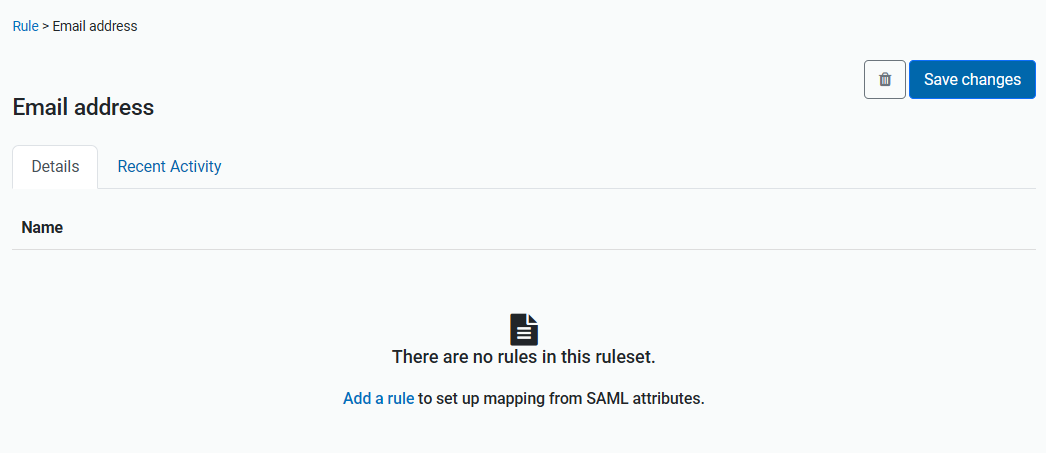
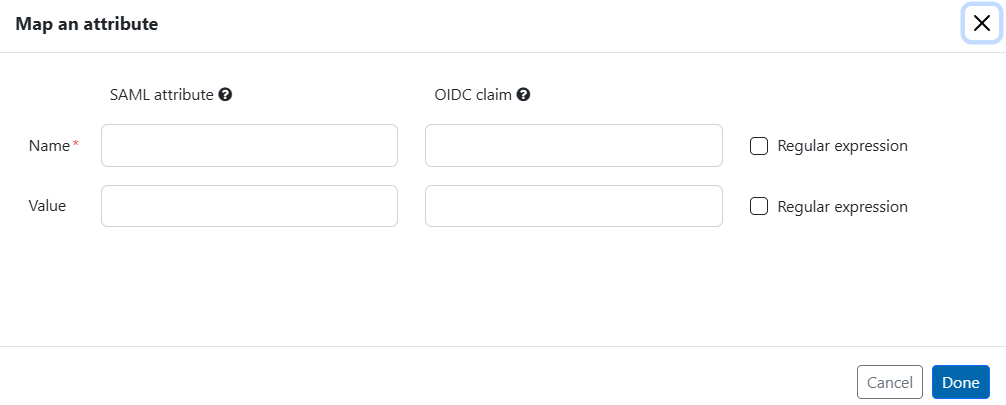
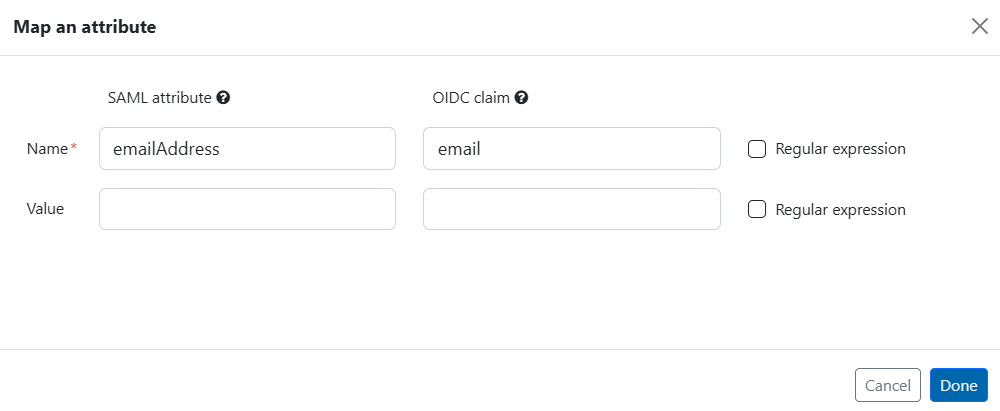
To define the first rule, click Add a rule. A pop-up window opens.
-
In the Name fields, enter the names of the SAML attribute to map (for example,
emailAddress) and the OIDC claim to which to map it (for example,email). You can use literal names or regular expressions that match a name. -
If you entered the names as regular expressions, tick Regular expression following the Name fields. If you entered literal names, leave this box unticked.
-
(Optional.) In the Value fields, enter expressions to define or manipulate the value of the attribute or claim. (For example, you could write an expression to clip just the domain part of an email address.) See Simple rule examples for possible inputs in this field.
-
(Optional.) If you entered values as regular expressions, tick Regular expression following the Value fields.
-
Press Done. Your new rule appears in the ruleset.
-
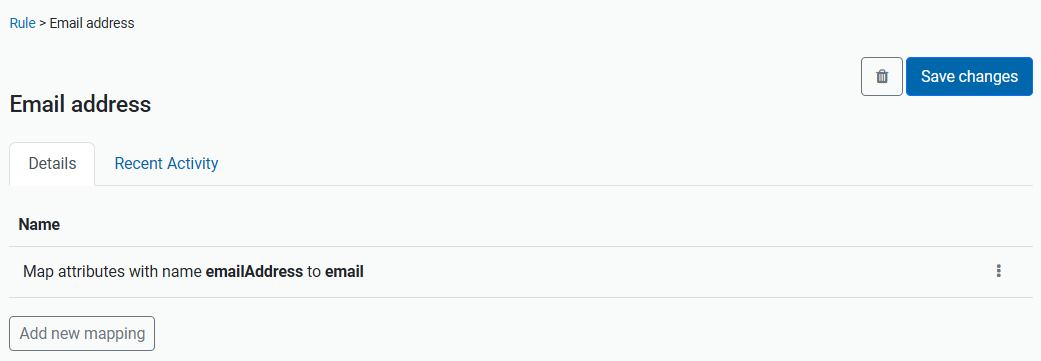
To add another rule to the ruleset, press Add new mapping and repeat steps 8-12.
-
When you’ve finished editing the ruleset, press Save changes to confirm the new rules.
Create a simple ruleset by cloning an existing ruleset
-
Log in to the Service Provider Dashboard as an administrator.
-
Go to Keystone settings > Attribute mapping rules.
-
Find the ruleset you want to copy. You can copy custom rulesets and some of the default rulesets.
From the ruleset’s Options menu, select Clone.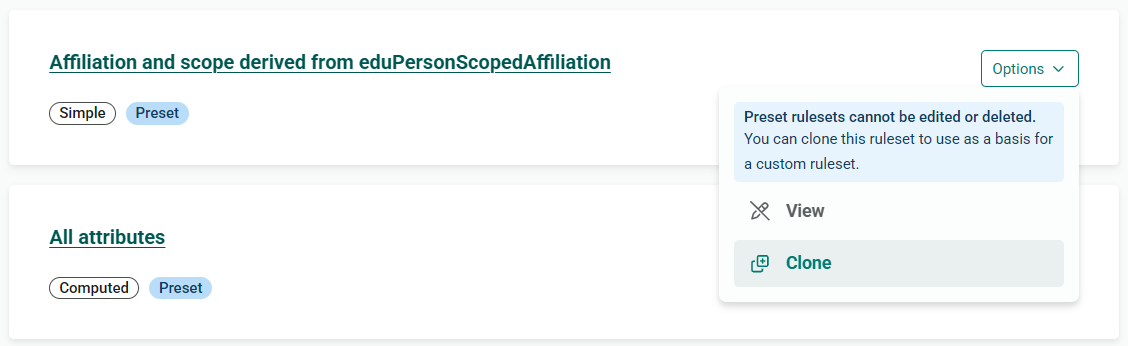
-
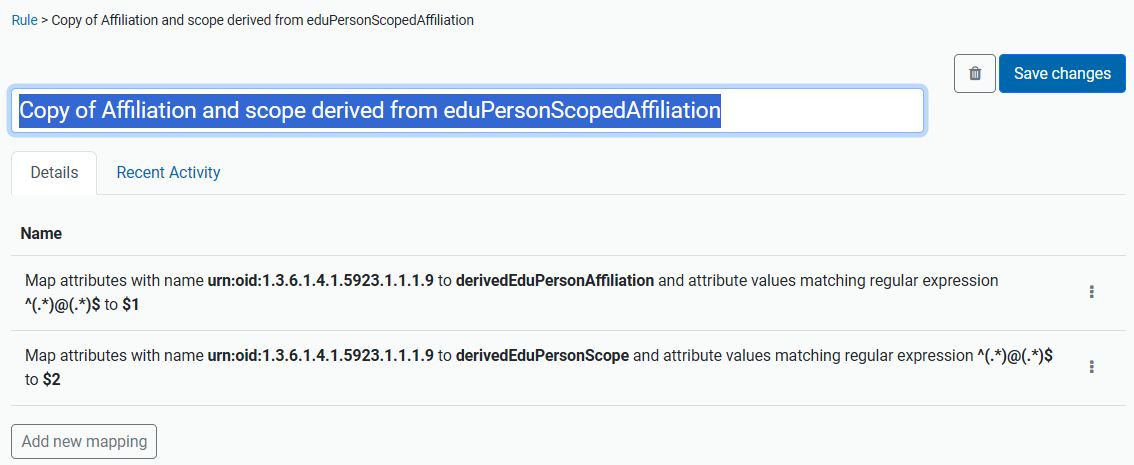
You can then view the details of the cloned ruleset and edit them to create your new ruleset. First, click on the name of the ruleset (which, by default, is “Copy of [name of the cloned ruleset]”) and change it to something appropriate.
-
You see a list of the rules that make up the cloned ruleset.
To amend an existing rule to use in your new ruleset, click the three-dots menu beside the rule and select Edit. Configure the rule as described in Create a simple ruleset from scratch.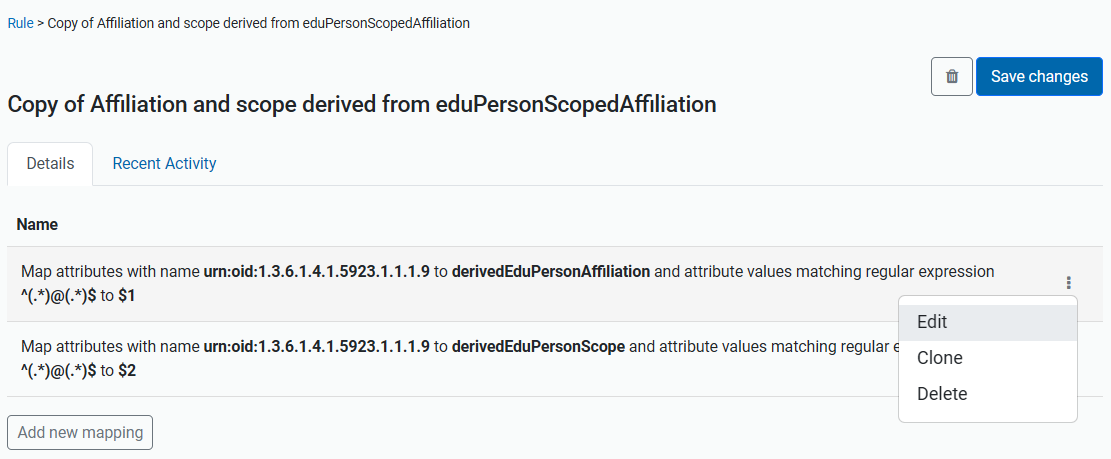
-
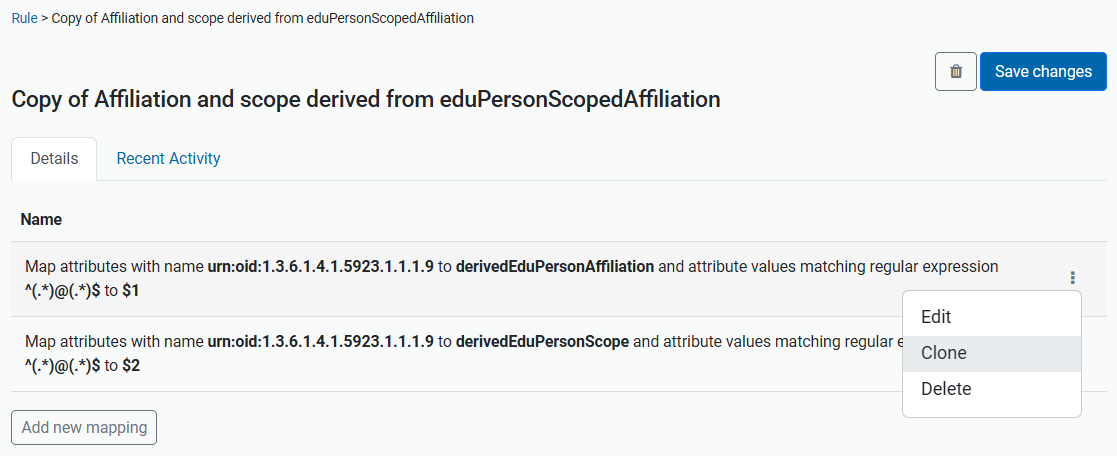
To create a new rule similar to an existing one, you can clone the existing rule and then amend your copy as required. Click the three-dots menu beside the rule and select Clone. Configure the rule as described in Create a simple ruleset from scratch.
-
To create a new rule from a blank template, press the Add new mapping button. Configure the rule as described in Create a simple ruleset from scratch.
-
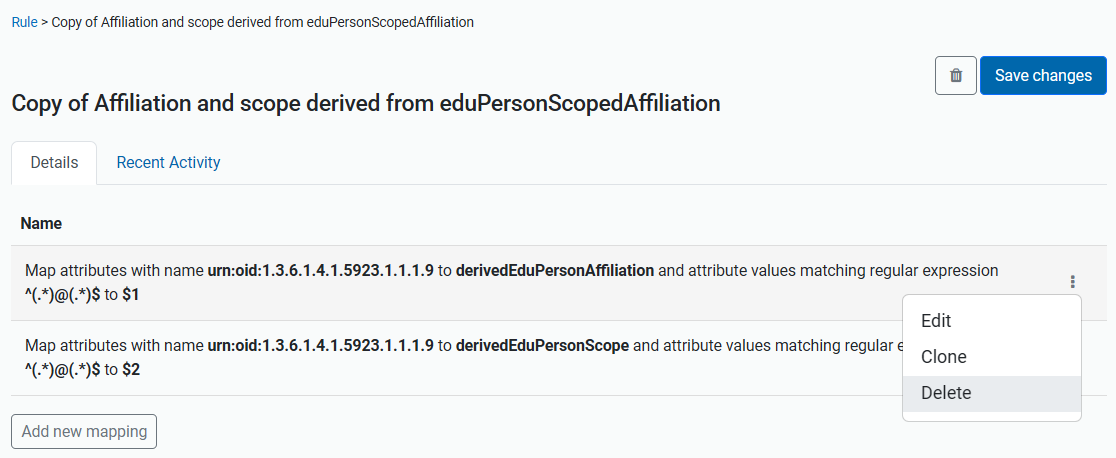
To remove one of the original rules from the ruleset, click the three-dots menu beside the rule and select Delete.
-
When you’ve finished configuring the ruleset, press Save changes.
Edit a custom ruleset
You can edit custom rulesets created by you or another administrator. You cannot edit the default rulesets.
-
Log in to the Service Provider Dashboard as an administrator.
-
Go to Keystone settings > Attribute mapping rules.
-
Find the ruleset you want to edit. From the ruleset’s Options menu, select Edit.
-
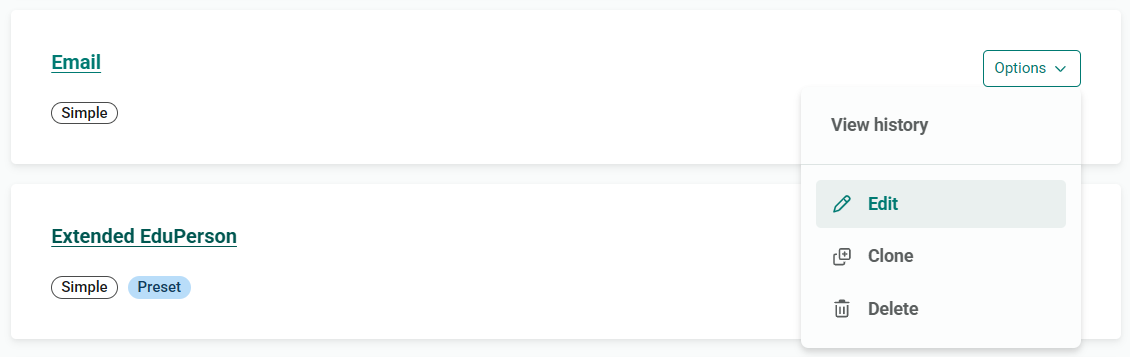
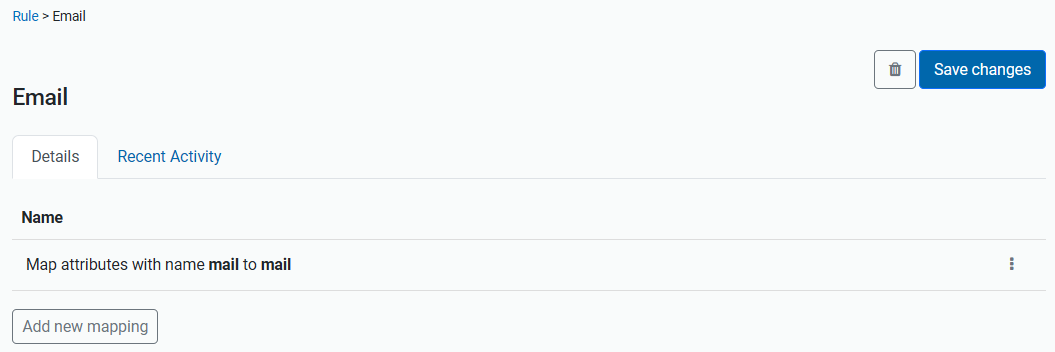
You can then update the definitions of existing rules, add new rules, or delete rules from the ruleset.
-
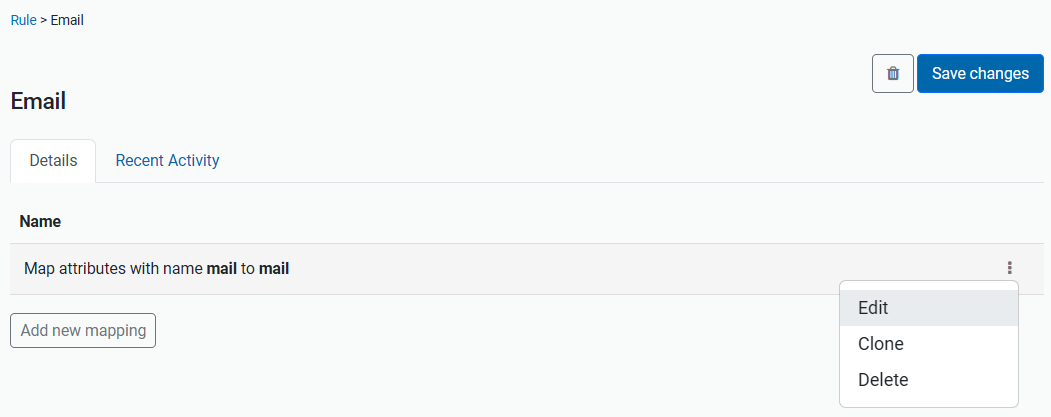
To edit the definition of an existing rule, select Edit from the three-dots menu. Configure the rule as described in Create a simple ruleset from scratch.
-
To add a new rule to the ruleset, either:
-
Press Add new mapping to create the rule from a blank template. Configure the rule as described in Create a simple ruleset from scratch.
-
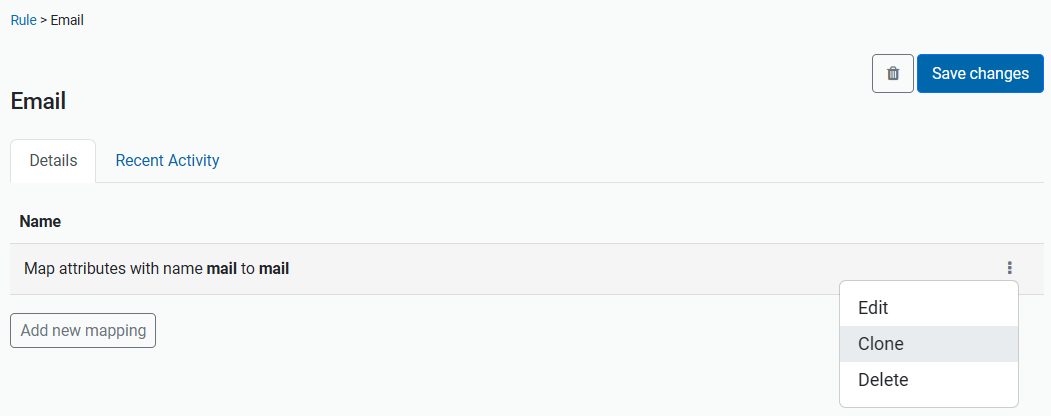
Open the three-dots menu beside an existing rule and select Clone. You can then create a new rule using the existing rule as a template.
-
-
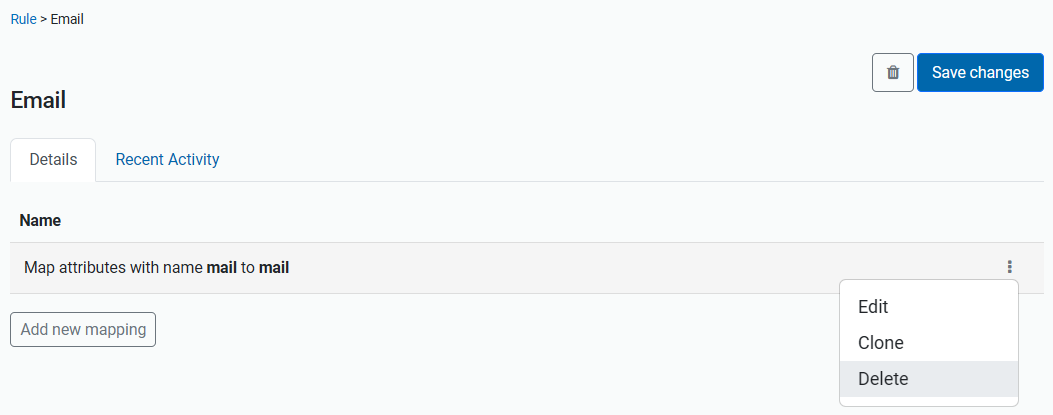
To delete a rule from the ruleset, select Delete from the three-dots menu.
-
When you’ve finished, press Save changes.
If simple rules don’t provide the logic you need, you can script a rule using JavaScript. See Mapping SAML attributes to OIDC claims with JavaScript.
Delete a custom ruleset
Before deleting a ruleset, check that the ruleset is not currently in use on a Keystone connection. You cannot delete the default rulesets.
-
Log in to the Service Provider Dashboard as an administrator.
-
Go to Keystone settings > Attribute mapping rules.
-
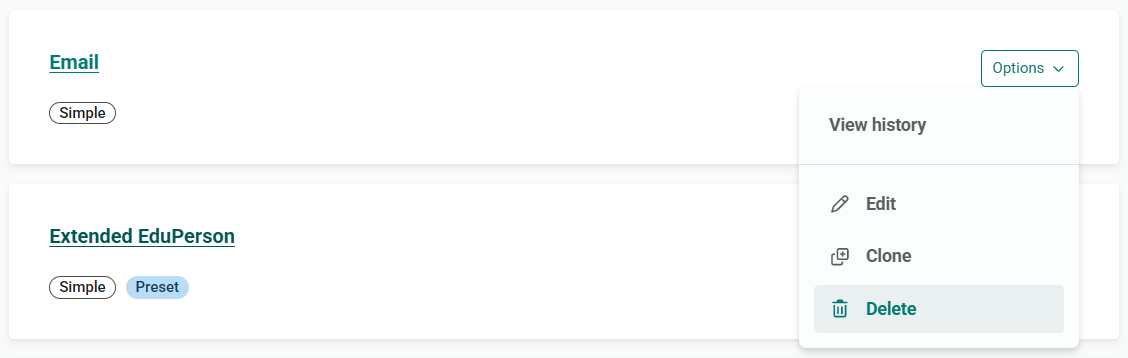
Find the ruleset you want to delete. From the ruleset’s Options menu, select Delete.
-
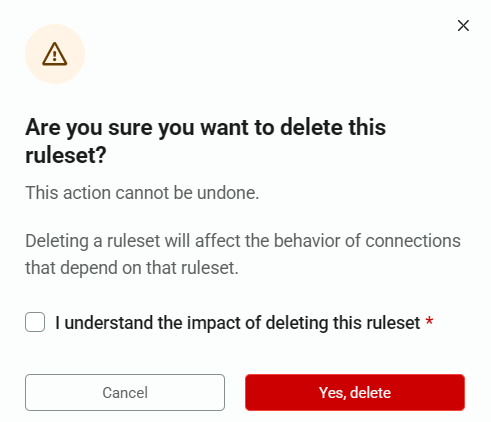
You are asked to confirm this action before the ruleset is deleted. To confirm, tick I understand the impact of deleting this ruleset and press Yes, delete.
View the history of a custom ruleset
You can view changes that have previously been made to a custom ruleset.
-
Log in to the Service Provider Dashboard as an administrator.
-
Go to Keystone settings > Attribute mapping rules.
-
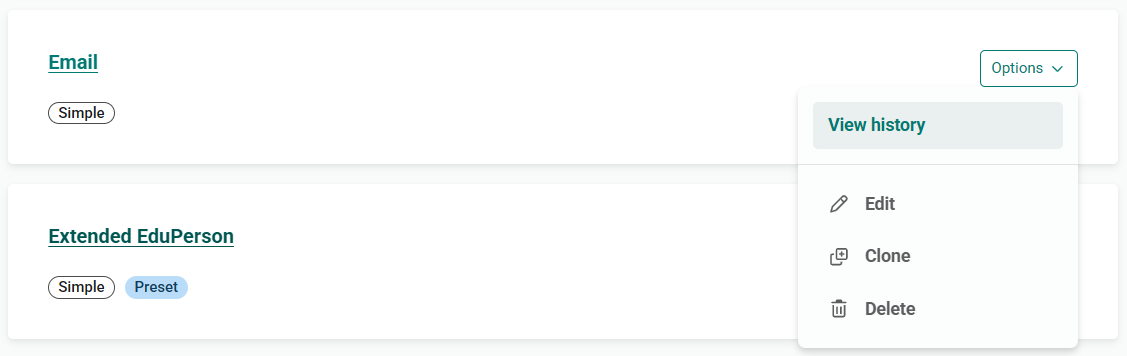
Find the ruleset whose history you want to view. From the ruleset’s Options menu, select View history.
-
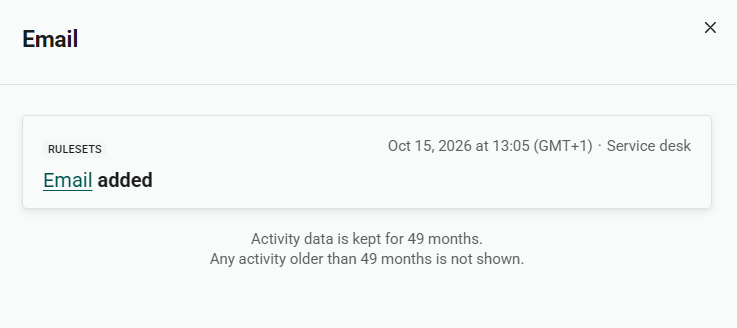
A change log for the ruleset opens in an overlay. This log details changes made to the ruleset in chronological order, with the most recent first.
Anything to watch out for?
-
If a ruleset doesn't activate when you expect, check that it is turned on for the relevant Keystone connection and that the connection has been saved
See also
-
Keystone connections, for how to enable or disable mapping rules for a connection