
If the simple mapping and transform rules do not meet your requirements, you can add a JavaScript rule. This is a more advanced operation and we recommend an understanding of both scripting and SAML.
Considerations before you start
-
Scripted rules are designed so that they can produce multiple OIDC claims. You should not expect to need more than one rule per Keystone connection
-
Execution time is limited to one second. After this time, the script is stopped and the login attempt will fail before the user is passed to you
-
Any exceptions generated by your script will stop execution and the login attempt will fail before the user is passed to you
-
Input attributes from SAML can be multi-valued and are unordered
Global objects
At the point of execution, the script has access to three global objects:
-
response: encapsulates the SAML response from the IdP
-
output: JavaScript object that stores OIDC claims
-
logger: Lets you write a limited number of debug statements
Scripted ruleset example
/**
 * parameter entitlements
 *      List of users entitlements
 * parameter roles
 *      List of users roles
 * return The membership type: gold, silver, bronze or tin.
 */
function getMembershipType(entitlements, roles) {
    logger.log("Entitlements: %s", entitlements);
    if (entitlements.includes("https://auth.example.com/terms-and-conditions")) {
        var rolesNoSuffix = removeScope(roles);
        logger.log("User has entitlement");
        logger.log("Roles without suffix: %s", rolesNoSuffix);
        if (rolesNoSuffix.includes("staff")) {
            logger.log("User is staff");
            return "gold";
        } else if (rolesNoSuffix.includes("student")) {
            logger.log("User is student");
            return "silver";
        } else if (role.includes("member")) {
            rolesNoSuffix.log("User is member");
            return "bronze";
        }
    }
    return "tin";
}

/**
 * parameter roles
 *      List of users roles
 * return
 *      List of users roles with the scope (suffix) removed if present.
 *      E.g staff@idp.domain.com -> staff.
 */
function removeScope(roles) {
    return roles.map((value) => {
        var matches = value.match(/^(.*)@.*$/);
        if (matches) {
            return matches[1];
        } else {
            return value;
        }
    });
}

//Execution starts here.
var xp = '//saml:SubjectLocality/@Address[1]';

//Should return a single valued array.
var nodes = response.evalXPath(xp);

if (nodes) {
    logger.log("Found %d address attributes", nodes.length);
    //Assign userIp to the output.  Will be released as an OIDC claim
    output.userIp = nodes[0].textContent;
} else {
    logger.log("Could not get users IP address");
}

var entitlements = response.getAttributeValues("urn:oid:1.3.6.1.4.1.5923.1.1.1.7");
var roles = response.getAttributeValues("urn:oid:1.3.6.1.4.1.5923.1.1.1.9");
//Assign membershipType to the output.  Will be released as an OIDC claim
output.membershipType = getMembershipType(entitlements, roles);
Response
Public methods
response.getIssuer();
Return Value:
-
-
a
Stringidentifying the issuer of the SAML response
-
response.getAttributeValues(name);
Parameters:
-
-
name: name of the SAML attribute
-
Return value:
-
-
a
String[]containing all values associated with the given name
The array will beemptyif there is no attribute in the response with the given name, or there are no values in the attribute
-
response.getFirstAttributeValue(name);
Parameters:
-
-
name: name of the SAML attribute
-
Return value:
-
-
A
stringcontaining the first value associated with the given name (the order is indeterminate). Will returnnullif there is no attribute with the given name, or there are no values in the attribute
-
response.evalXPath(exp);
The following xml namespaces are pre-registered:
|
Prefix |
Namespace |
|---|---|
|
samlp |
urn:oasis:names:tc:SAML:2.0:protocol |
|
saml |
urn:oasis:names:tc:SAML:2.0:assertion |
Therefore, any elements within these namespaces can be accessed via the prefix. E.g. //samlp:StatusCode/@Value.
If you require access to anything not defined in these namespaces, you need to register them in the xpath expression. E.g //*[local-name()='ElemName' and namespace-uri()='http://ext.namespace.com']/@AttrName.
Parameters:
-
-
exp: the xpath expression which will be evaluated over the SAML response (xml)
-
Return value:
-
-
An
Element[]. The array will be empty if nothing was found for the given xpath expression
-
Logger
The logger enables script debugging and is limited to the last 100 messages.
Public methods
logger.log(obj1 [, obj2, ..., objN]);
Parameters:
-
-
A list of JavaScript objects you want to inspect
-
logger.log(msg [, subst1, ..., substN]);
Parameters:
-
-
JavaScript objects with which to replace substitution strings within
msg.
E.g.logger.log("SAML Issuer: %s", issuerString);
-
Output
A standard JavaScript Object which you can assign any arbitrary property and associated value (String or String[]).
E.g. to assert a OIDC claim indicating membershipType, you would do the following:
//Recommended method.
output.membershipType = 'gold';
//Or not recommended method
output['membershipType'] = 'silver';
Create a scripted ruleset
-
Log in to the Service Provider Dashboard as an administrator.
-
Go to Keystone settings > Attribute mapping rules.
-
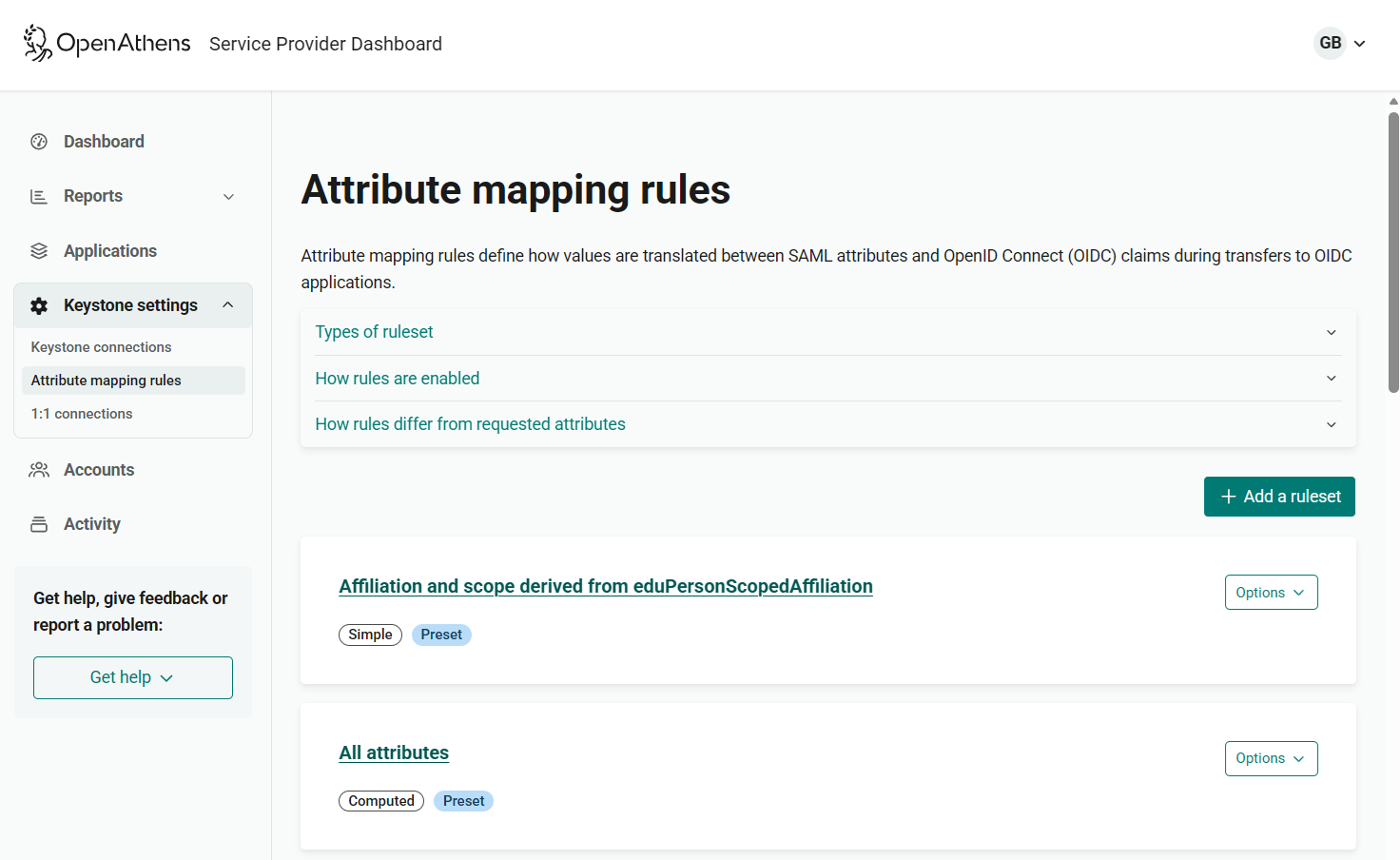
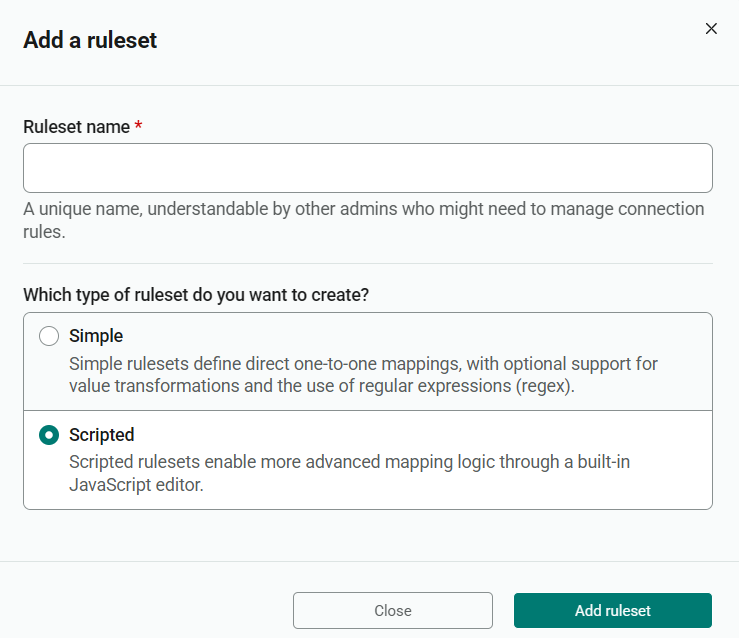
Click the Add a ruleset button. A dialog opens.
-
In the Ruleset name field, enter a descriptive name for the ruleset. The name must be unique.
-
Under Which type of ruleet do you want to create?, select Scripted.
-
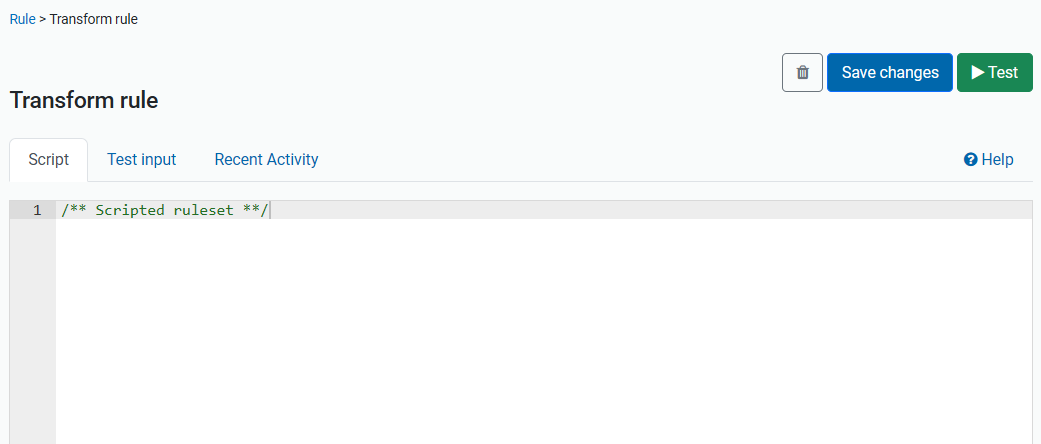
Press Add ruleset. You can then script the rule.
-
Enter your JavaScript code in the Script tab.
-
Press the Test button to check the script. A pop-up window opens. If the script runs correctly, the designated output is shown in the Output tab. Errors are shown in the Logs tab.
-
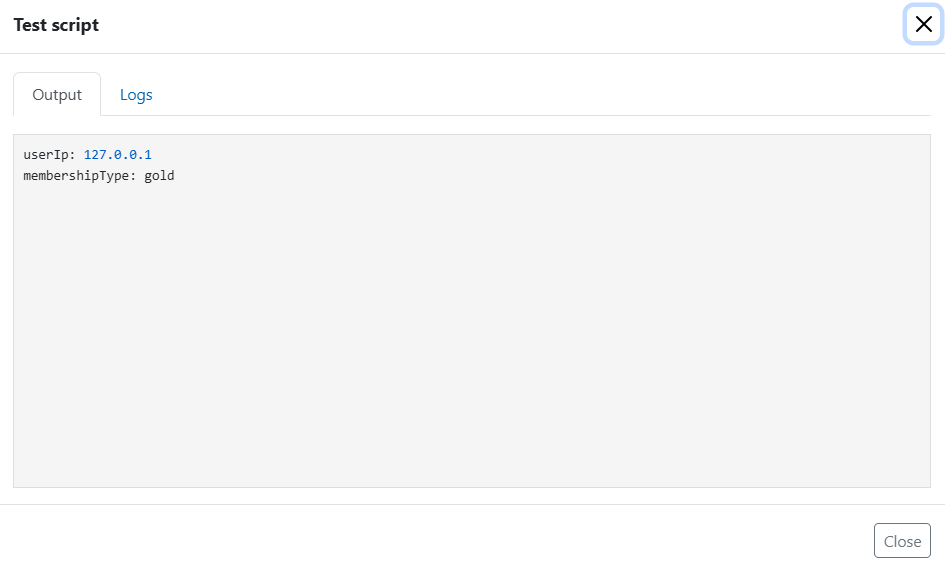
If necessary, correct errors and test the script again.
-
When you’ve finished, press Save changes.
See also
-
Mapping SAML attributes to OIDC claims, for other functions relating to mapping rulesets