
To create a redirector link, you provide a target URL within a resource. OpenAthens encodes the URL and applies the appropriate redirector prefix for your domain. You can then copy the new link and publish it where you need it.
There are several ways to create redirector links:
-
In the Compass admin area, generate a single link by entering its target URL
-
Generate a batch of links by uploading a file of URLs to Compass
-
Use the publicly available redirector link generator to create links. This method is available to OpenAthens Connect customers and to staff who lack admin access to Compass
Prerequisites
-
Understand the format of redirector links and how they work. See How the redirector works
-
If you want to create multiple redirector links, assemble a list of URLs. Ensure that the resources to which you want to link:
-
Have subscription access
-
Are compatible with the redirector (see How the redirector works)
-
Are allocated to permission sets, if you use restrictive mode
-
Create an individual link in Compass
-
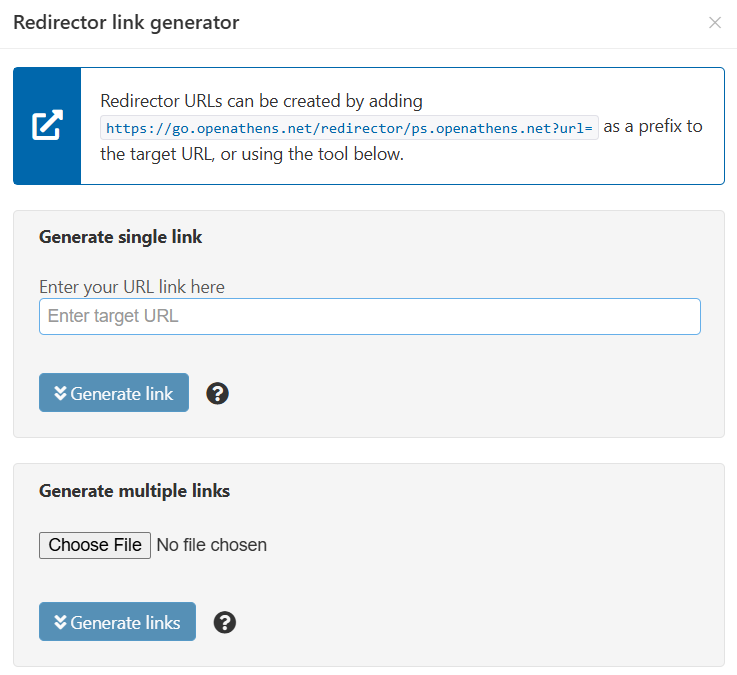
From the main menu, select Resources > Redirector link generator. A pop-up window opens.
-
Go to the section Generate single link.
-
Type or paste your target URL in the field Enter your URL link here. The URL must include http:// or https://. Don’t include sensitive or temporary information, such as passwords or session parameters.
-
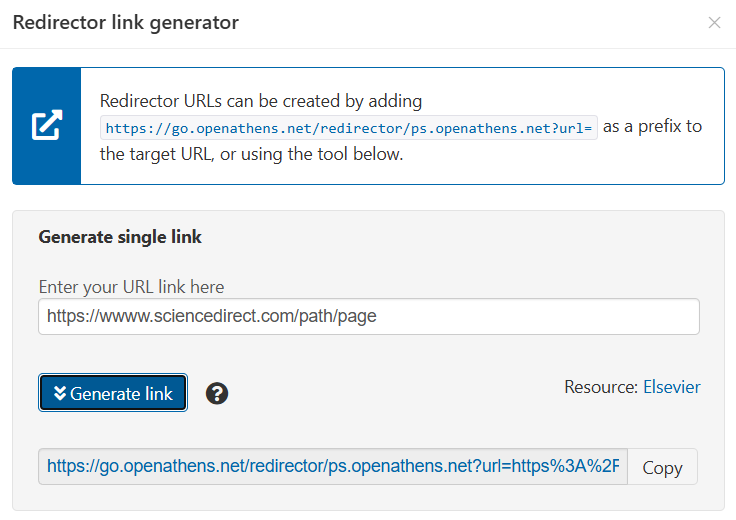
Press the Generate link button or hit the Return key.
-
Your redirector link appears in a text field below the button.
-
To copy the redirector link, press the Copy button.
-
Paste the link into a web page or store it to use later.
Failures
If link generation fails, you will get an error message.
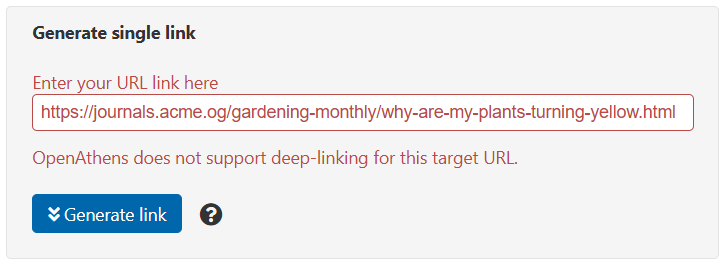
Link generation can fail because:
-
You omitted http:// or https:// from the URL
-
You mistyped the domain name part of the URL. Check the spelling and try again
-
The resource to which the URL belongs is not compatible with the redirector. See How the redirector works for how to identify compatible resources
Create a batch of links in Compass
If you’ve assembled a collection of links that you want to use with the redirector, you can upload them as a batch.
Create an upload file in .csv or .txt format. Paste in all of the URLs you want to upload, with each URL on a new line. For example:
https://journals.acme.org/gardening-monthly/why-are-my-plants-turning-yellow.html
https://journals.acme.org/gardening-monthly/caring-for-acid-loving-plants.html
https://journals.acme.org/popular-botany/the-story-of-evergreens.html
URLs must include http:// or https://. Ensure that they don’t include sensitive or temporary information, such as passwords or session parameters.
-
From the main menu, select Resources > Redirector link generator. A pop-up window opens.
-
Go to the section Generate multiple links.
-
Press Choose File and select the upload file from your computer.
-
Press the Generate links button.
-
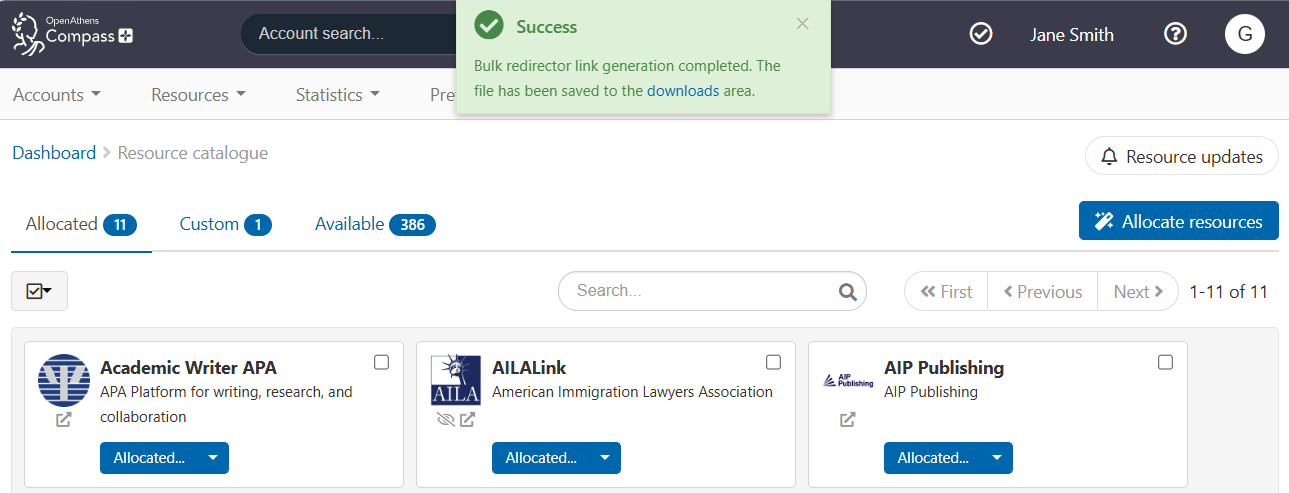
If the upload is successful, the pop-up window closes and you get a confirmation message at the top of your screen.
-
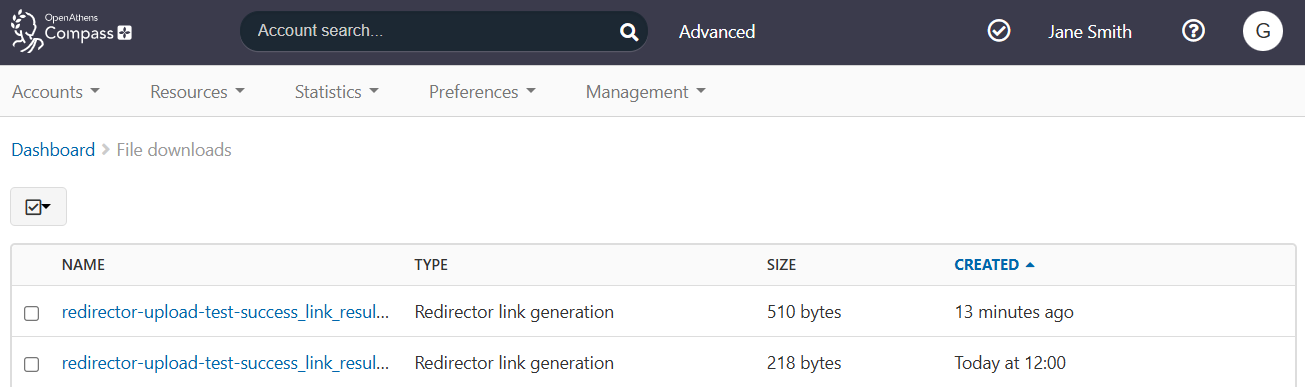
To see the generated links, go to Management > Downloads or click the downloads link in the success message.
-
The results of your upload are contained in a file called ‘[name of your upload file]_results.csv’. Click on the name of the file to download the file in your browser.
Results file
The downloaded file has four columns:
-
Target URL: the original URL you uploaded
-
Redirectable URL: the encoded target URL with the redirector prefix. You can copy this link into a library portal, online reading list, etc.
-
Resource Information: the publisher of the resource to which the URL belongs
-
Errors: if link generation failed, an error code that identifies the problem

Failures
If upload fails, pressing the Generate links button will give an error message.
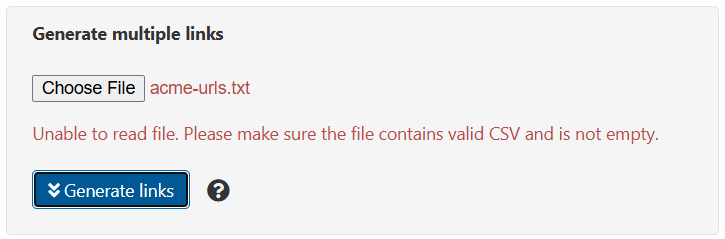
Reasons an upload can fail include:
-
The file is not in a valid format (must be .csv or .txt)
-
The file is empty
-
Your session has expired while on the page (try logging in again)
If the file uploads successfully but the redirector fails to convert one or more URLs, the Errors column in the results file will show an error code for each failed URL.
Error codes include:
|
Error |
Description |
|---|---|
|
UNAUTHORISED |
URL is not recognised as belonging to a redirectable resource |
|
URI_ERROR |
URL is incorrectly formatted (for example, lacks https:// or http://) |
|
GENERAL_ERROR |
Nonspecific error; URL is not compatible |
Create links using the public OpenAthens link generator
If you or colleagues don’t have access to the Compass admin area, you can generate redirector links using our public link generator. This tool is available to OpenAthens Connect customers (who might know these links as ‘Athenized links’) and to anyone who belongs to a customer organisation.
If you do have admin access to Compass, we recommend creating redirector links in Compass since it is easier to check that your resources are compatible.
-
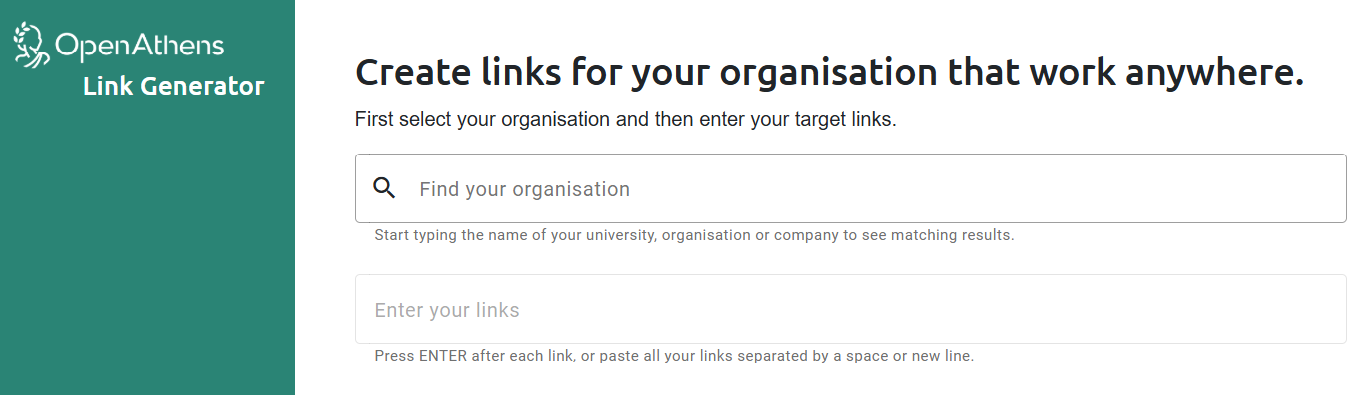
Go to the OpenAthens Link Generator at https://go.openathens.net/generate.
-
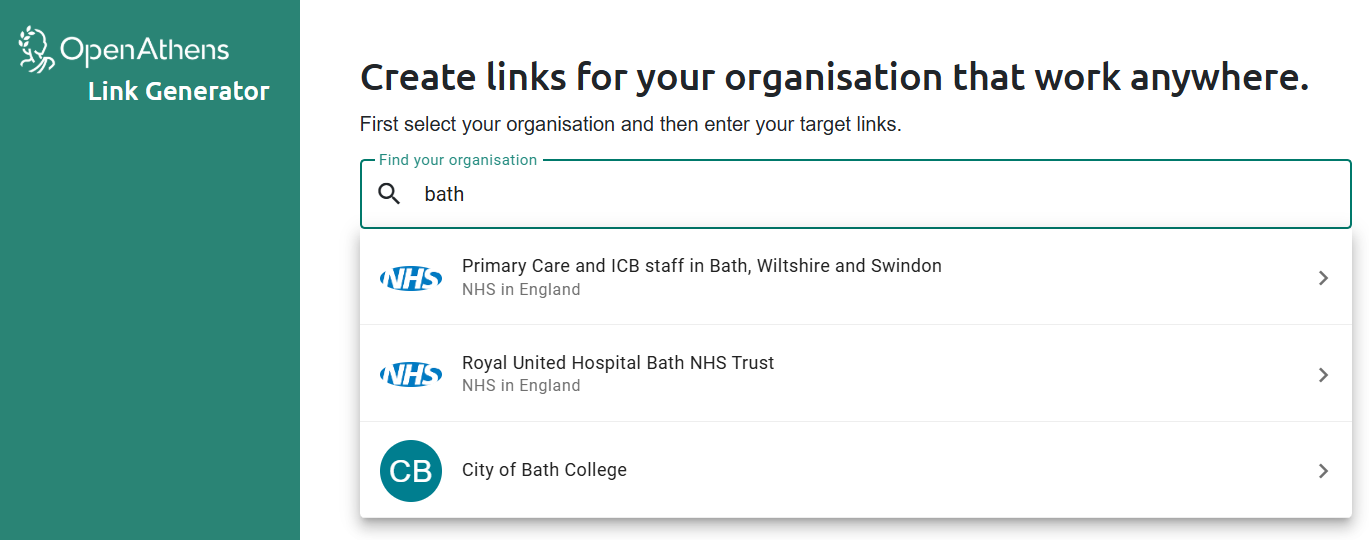
In the Find your organisation field, start typing the name of your institution and select the institution from the search results. This will give your redirector links the correct domain prefix.
-
In the Enter your links field, either:
-
Paste a target URL or a list of URLs. To enter multiple URLs at once, copy a list in which each URL is written on a new line and paste the list as a block.
The pasted URL(s) are processed automatically. Your generated redirector links are output further down the page. -
Type a single target URL and press Return. The URL is processed automatically and your generated redirector link is output further down the page.
If any URLs are incompatible with the redirector or otherwise invalid, you will see an error message in the output.
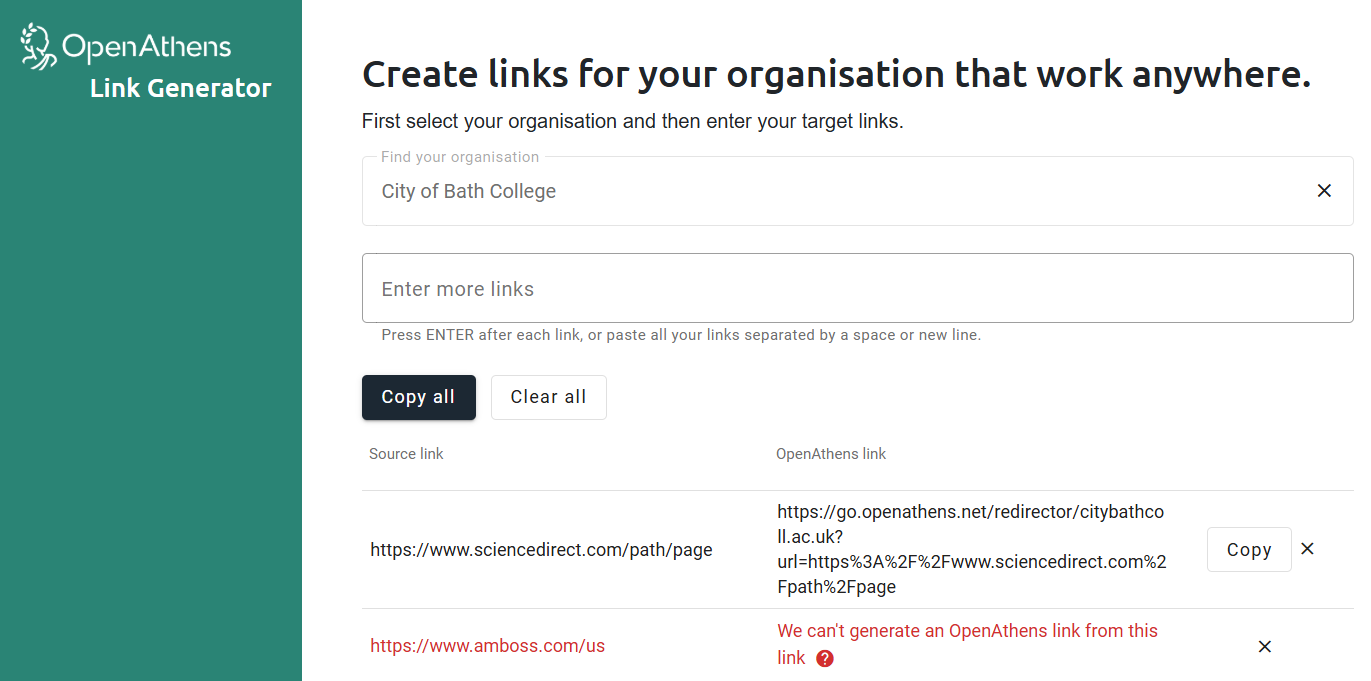
-
-
To copy the valid redirector links for publication, press Copy all.
After you select your organisation, the address in your browser’s location bar updates to include an identifier for the organisation. For example, https://go.openathens.net/generate/citybathcoll.ac.uk/1701128.
If you go directly to this address, you’ll find that your organisation is preselected. You can bookmark the address to avoid having to search for your organisation on future visits.
Create redirector links manually
Once you’re familiar with the format of redirector links, you might want to create new links by hand. You can create a link to any redirectable resource page by encoding the target URL and adding your redirector prefix.
The prefix for your domain is displayed in Resources > Redirector link generator and is the same for every link.
To encode the target URL, use an online percent encoding tool or the encode function in many spreadsheet programs.
If you create redirector links manually, ensure you test them before publication to make sure that the link is correct and that the target resource is compatible with the redirector.
Anything to watch out for?
-
Check that your target URL is correct. The link generator checks only that the URL includes the domain name of a valid resource, not that the specific page to which it points actually exists
-
Rarely, there might be more than one version of a resource in the catalogue. In that case, ensure that you generate redirector links from the version in use
-
The link generator will always return federated resources before looking at matches in the managed proxy service
-
Some service providers have proprietary link formats that you will need to replicate in the target URL. See The redirector and non-standard link syntaxes
-
If you enter DOIs or EBSCO smartlinks as target URLs, check the generated links manually
-
To use the redirector with some library management systems, you may need to configure the library management system to accept the redirector prefix in place of a proxy. See Library management systems
-
If you are unable to create redirector links to a resource that you believe should be available, try the following:
-
Check the resource configuration in your catalogue (see How the redirector works)
-
Search our full list of providers compatible with OpenAthens and look for the OpenAthens Redirector tag
-
If you are still unsure, contact our customer service team. They can check if it’s possible to make the resource compatible with the redirector and advise on next steps
-
See also
-
Redirector preferences, for how to enable users to bypass authentication when following redirector links