
Update an IdP metadata certificate
The certificates for additional identity providers must be kept up to date to avoid access issues. When a certificate that belongs to one of your additional identity providers is due to expire:
-
Go to Keystone settings > 1:1 connections.
-
Find the entity you want to update in the list.
-
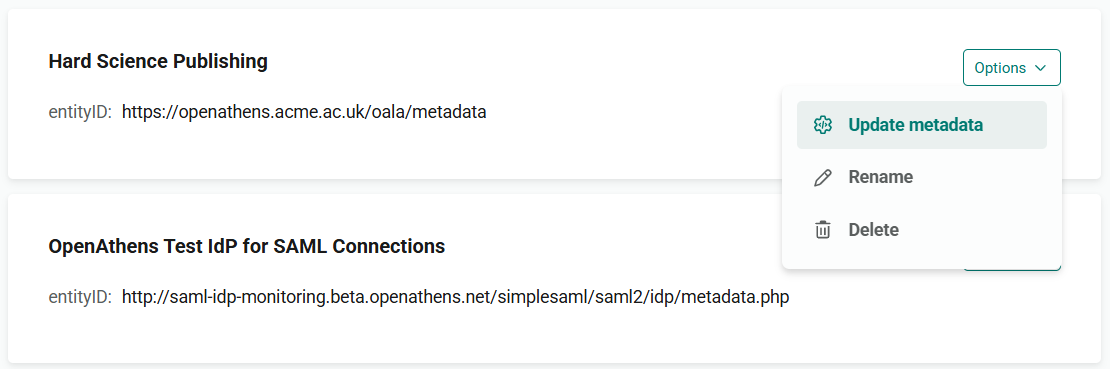
From the Options menu, select Update metadata.
-
Enter and confirm the new metadata URL or metadata file in the same way as when adding a 1:1 connection.
View IdP metadata
If you need to check details of the SAML metadata uploaded for the IdP, you can view the current metadata.
-
Go to Keystone settings > 1:1 connections.
-
Find the entity in your list of additional identity providers.
-
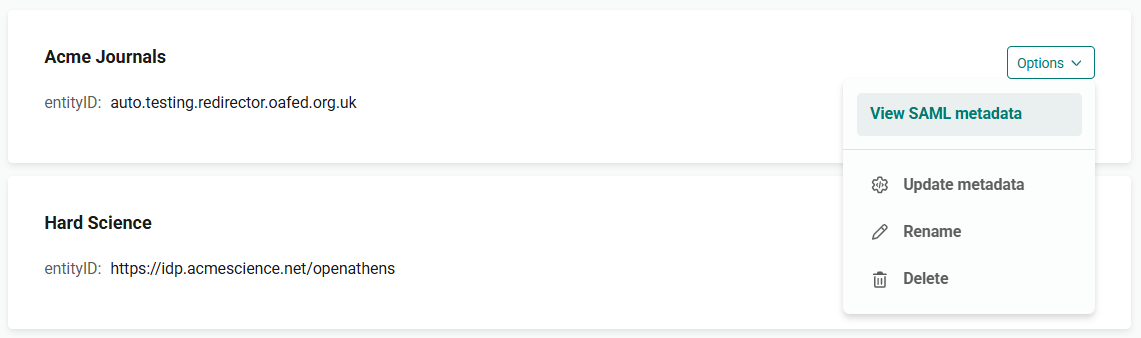
From the Options menu, select View SAML metadata.
-
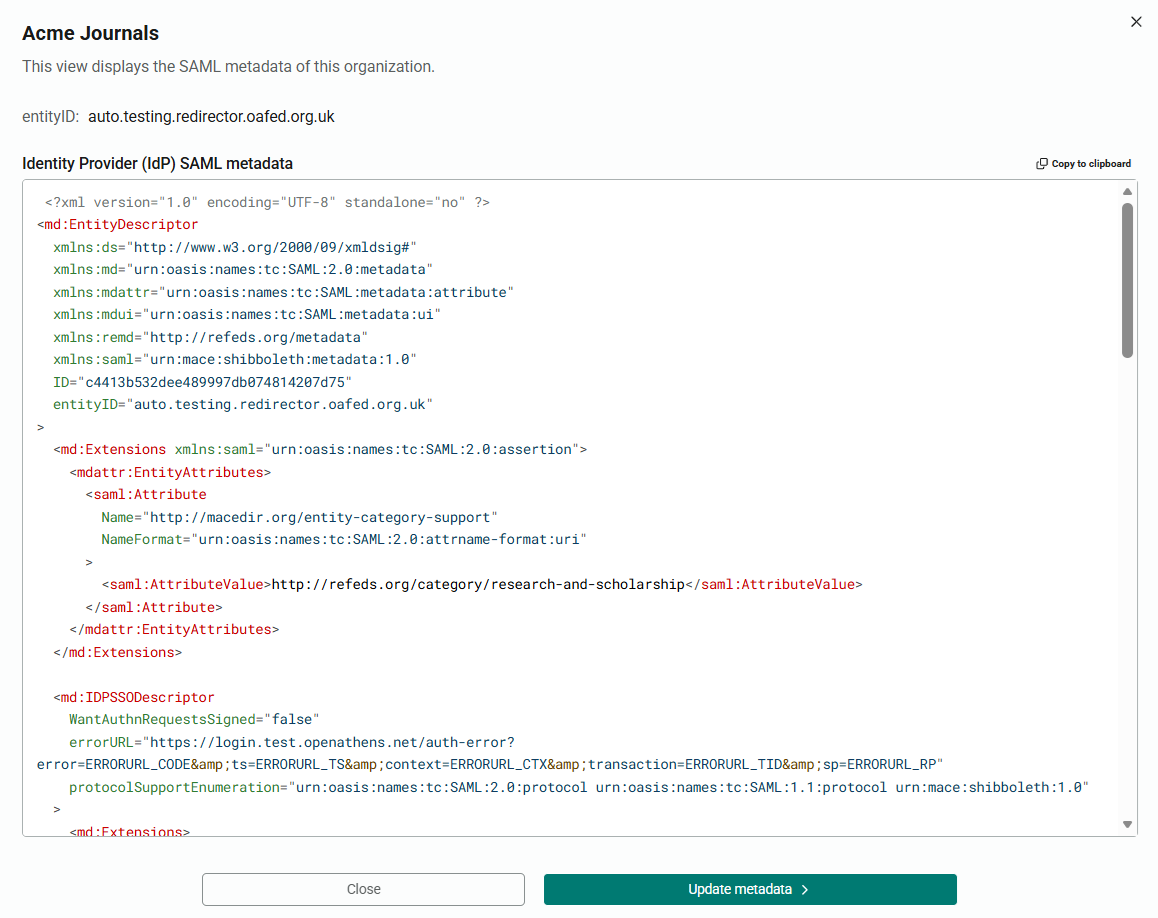
The metadata displays in a pop-up window.
-
To copy the metadata, click Copy to clipboard.
-
If you need to upload new metadata for the IdP, press Update metadata. Enter and confirm the new metadata URL or metadata file in the same way as when adding a 1:1 connection. (You can also do this directly from the list of connections. See Update an IdP metadata certificate.)
-
To close the pop-up window, press Close.