
If required, you can change the display name for an identity provider that uses a 1:1 connection. This name is displayed to end users when they go through discovery, as well as in statistics reports.
-
Go to Keystone settings > 1:1 connections.
-
Find the entity you want to rename in the list.
-
From the Options menu, select Rename.
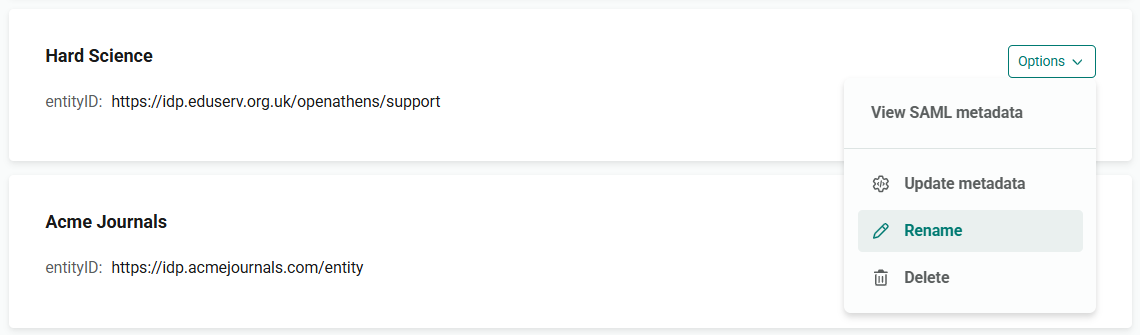
-
A pop-up window opens. Enter the new name in the 1:1 connection display name field.
The name must be at least two characters long. We recommend making it no longer than 140 characters (names longer than this don't display well in Wayfinder and other organization discovery tools).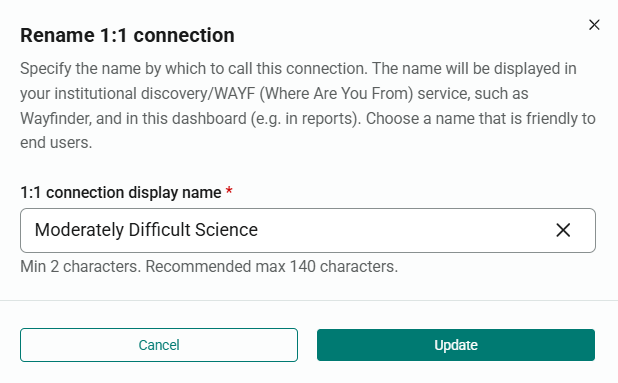
-
Press Update. The list of connections updates to show the new name.