
From the Keystone connections list, you can see an audit trail of all changes made to a connection. This is the same data that is available from the Activity page, but is automatically filtered to show activity for a specific connection.
-
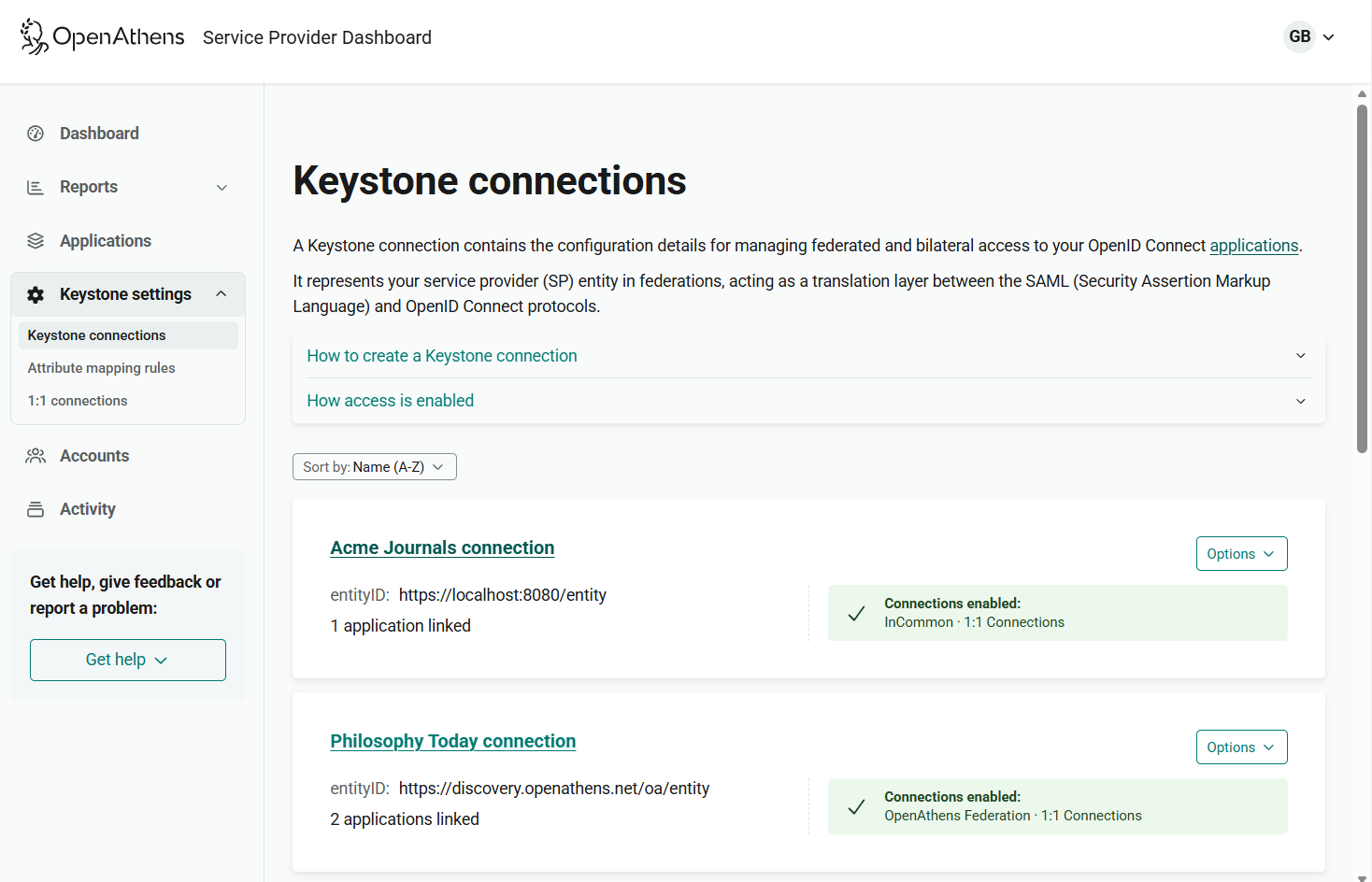
Log in to the service provider dashboard as an administrator and go to Keystone connections.
-
Find the connection whose history you want to view.
-
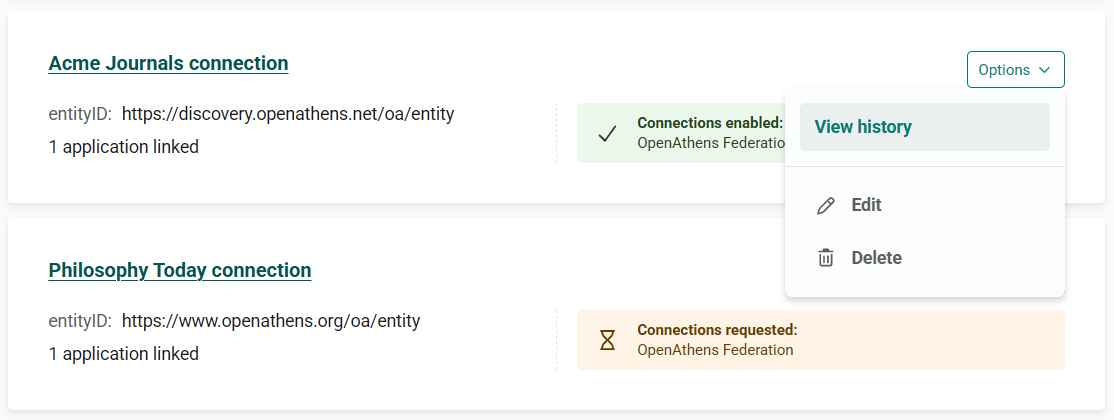
From the Options menu of the connection, select View history.
-
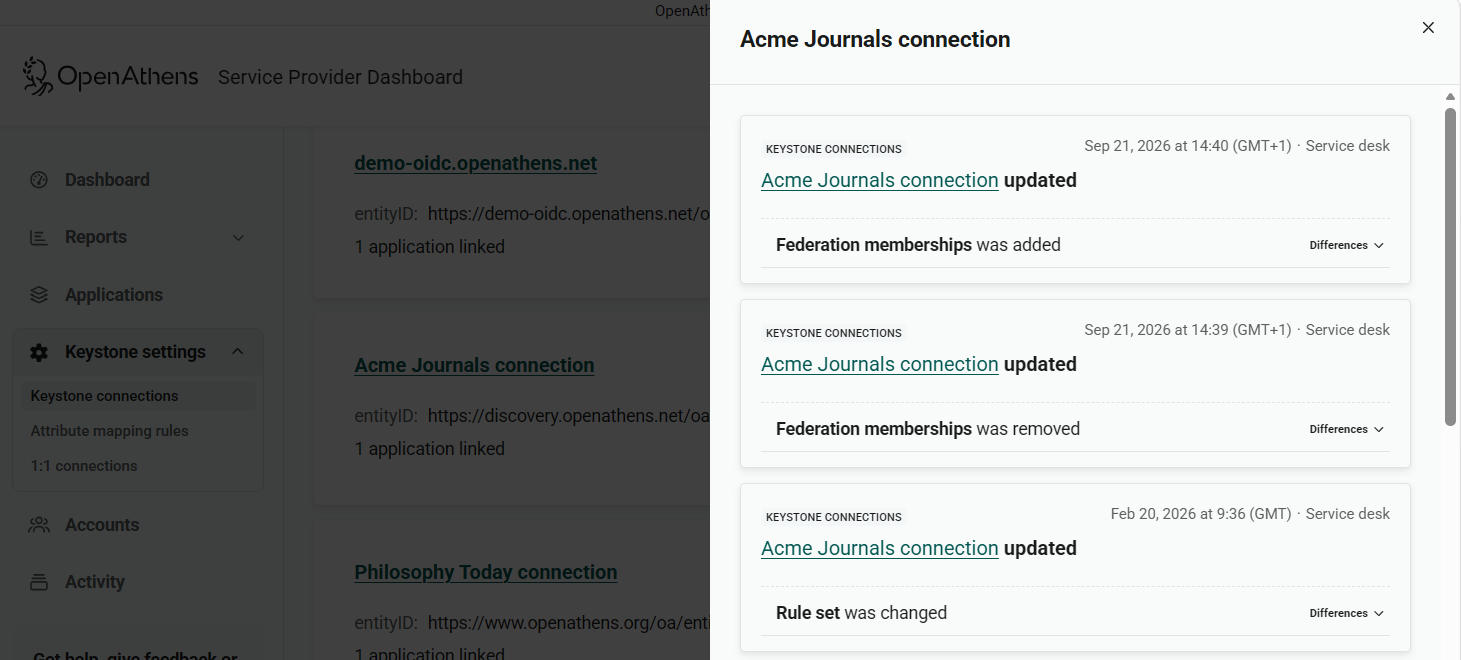
The change history of the connection opens in an overlay on the right side of the screen. Changes are listed in chronological order, with the most recent first.
-
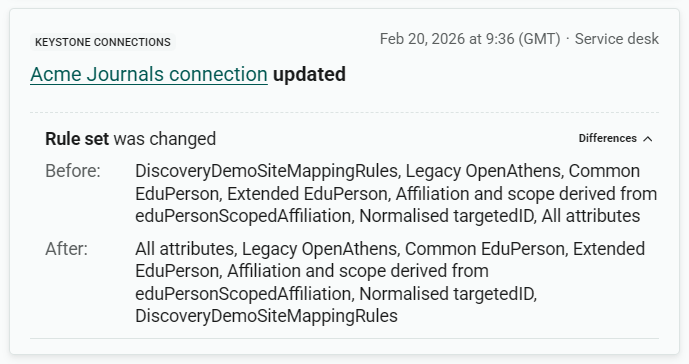
To see the details of a change, click Differences at the bottom right.
-
To close the change history, hit the X at the top right of the overlay or click your cursor in the main screen area.