
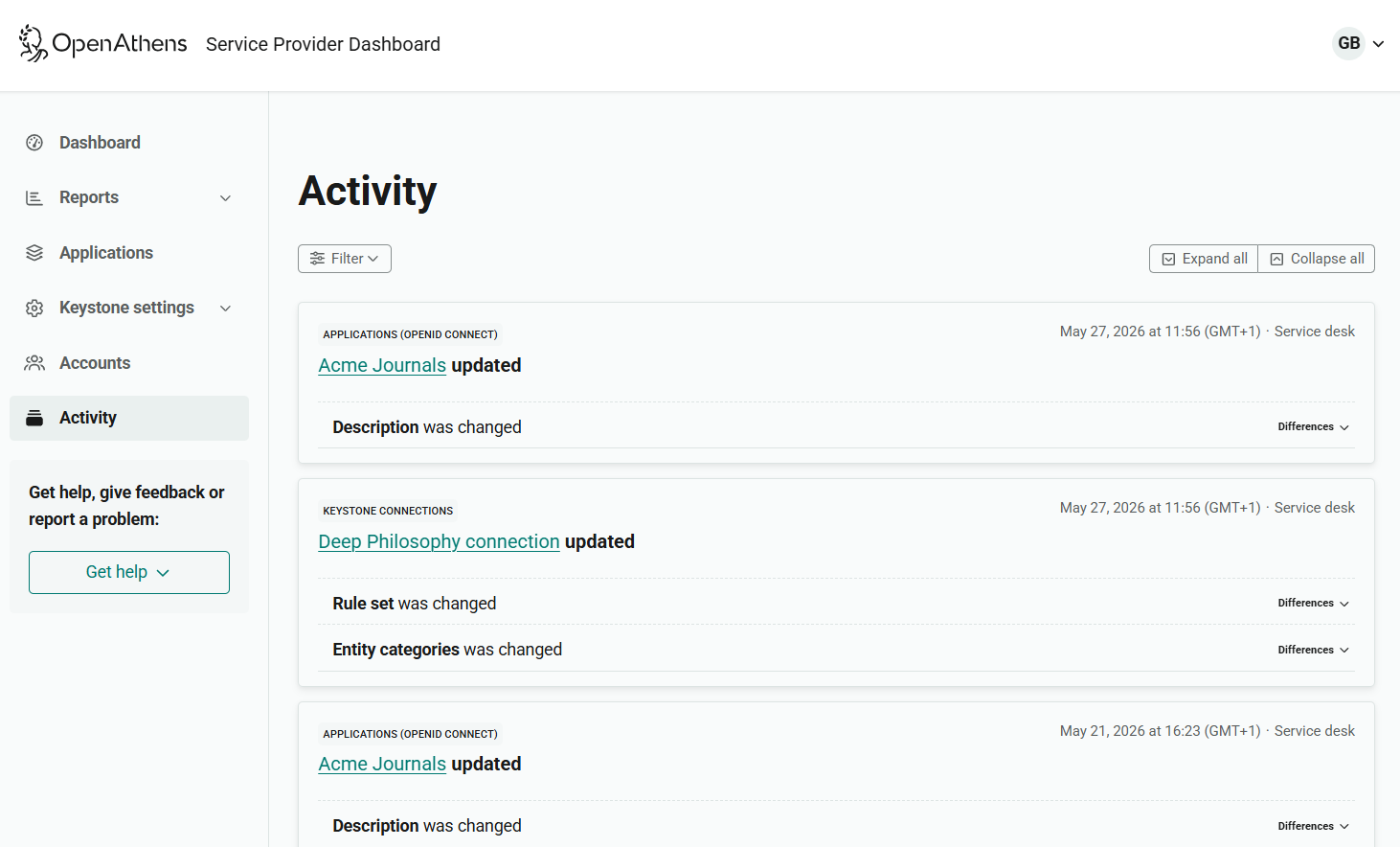
To see a record of activity in the service provider dashboard, select Activity from the main menu. This page shows a list of actions performed by administrators, up to a maximum of 49 months previously.
Filter activity by type
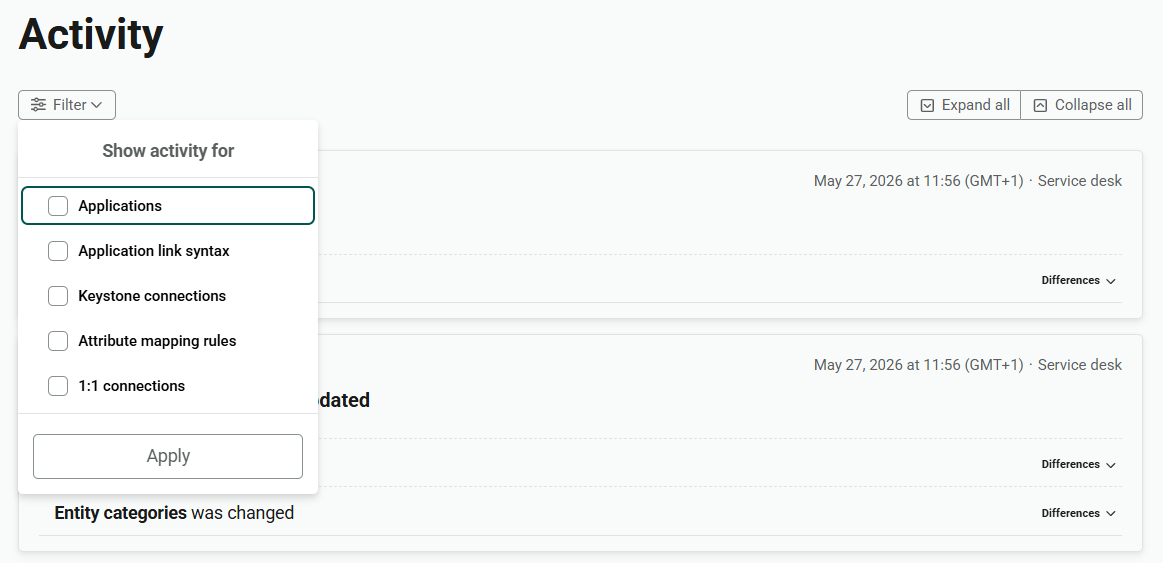
You can filter the list to view specific types of activity.
-
Open the Filter panel.
-
Tick each type of activity you want to view. Up to five filters are available, though only those for which there is relevant activity are shown.
-
Applications: Adding, updating, publishing, unpublishing or deleting applications. (You can also view activity for a specific application from the Applications page)
-
Application link syntax: Adding, updating or removing configurations for WAYFless or deep linking
-
Keystone connections: Adding, updating or deleting Keystone (OpenID Connect) connections. (You can also view activity for a specific connection from the Keystone connections page)
-
Attribute mapping rules: Adding, updating or deleting rulesets
-
1:1 connections: Adding, updating or deleting 1:1 (bilateral) connections
-
-
Press Apply to refresh the list.
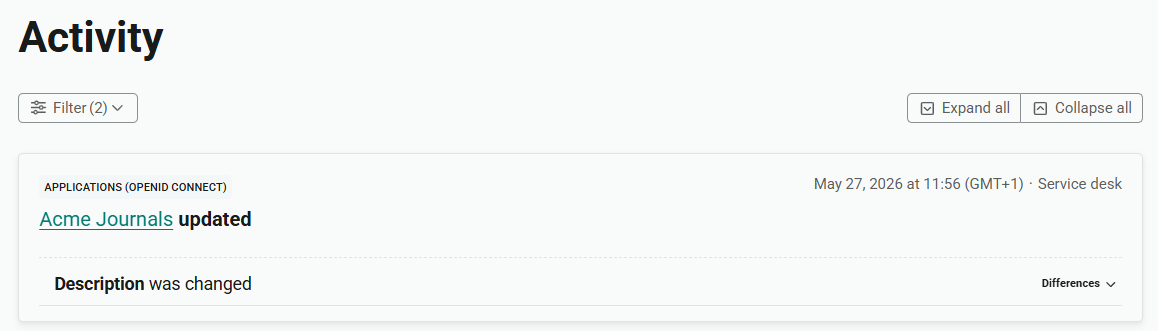
When you view the filtered list, a number in brackets beside the Filter control shows how many filters are currently applied. (If the list is unfiltered, no number is shown.)
View update details
For updated actions, you can see what was changed.
-
Following the key details of an updated action, click Differences.

-
The Differences section expands to show details of the update. Before shows the relevant data before the update. After shows the new data.

-
Click Differences again to hide the details.
View all details
To expand the details of all updates that are currently shown, press Expand all at the top of the list.

To hide the details, press Collapse all.
Restrictions
-
You can see activity only for applications that you have permission to access.
-
To see activity related to a Keystone connection, you must have access to at least one application that uses that connection.
-
To see historical activity related to deleted applications, or to connections whose applications have been deleted, you must have the Owner role.