
View the history of an application

From the Applications list, you can see an audit trail of all changes made to an application. This is the same data that is available from the Activity page, but is automatically filtered by application.

  1. Log in to the service provider dashboard as an administrator and go to Applications.
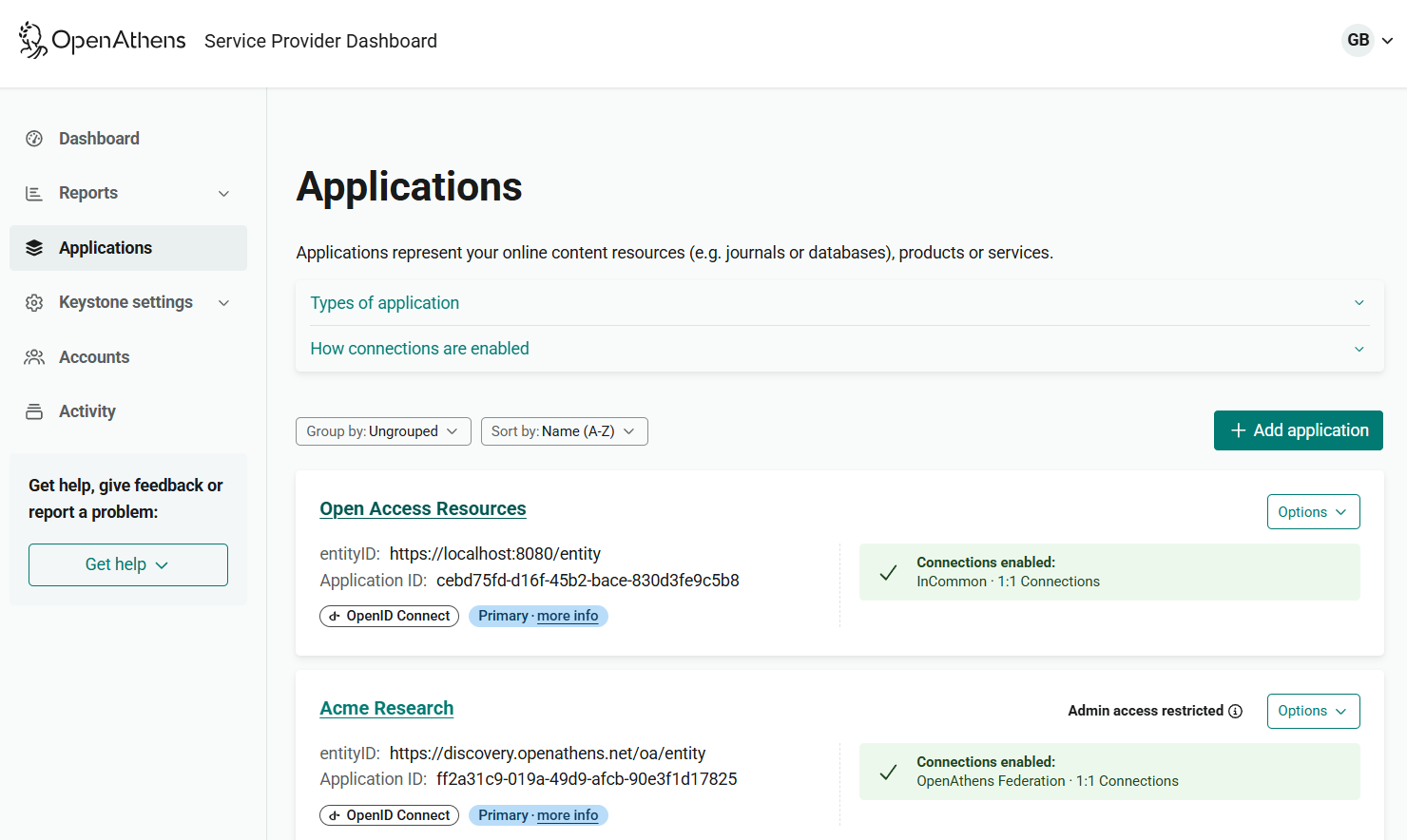
    Applications page, showing a list of current applications. Each entry includes the title of the application (which links to further details), the entityID, application ID, what type of connection it uses, whether it is the primary application, and which connections provide access. Beside each application is a drop-down menu labeled 'Optio
  2. Find the application whose history you want to view.

  3. From the application’s Options menu, select View history.
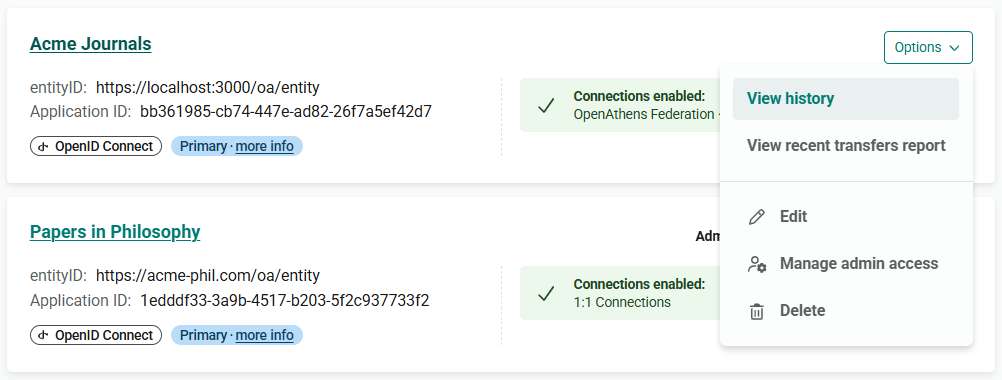
    application-history-menu.png
  4. The change history of the application opens in an overlay on the right side of the screen. Changes are listed in chronological order, with the most recent first.
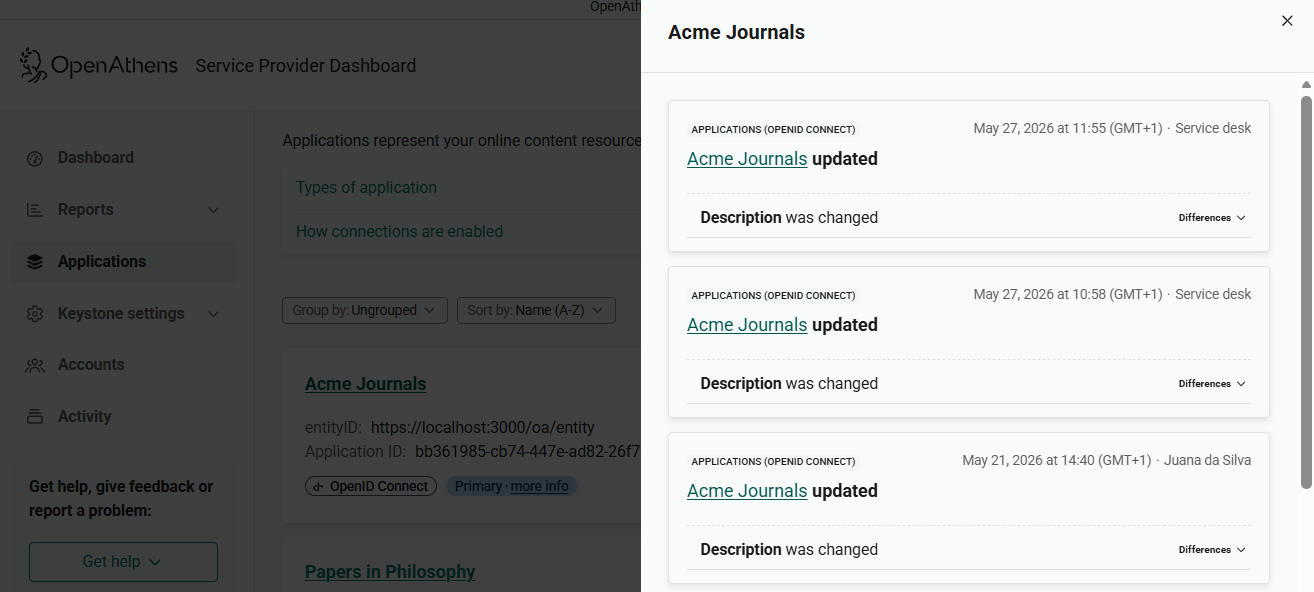
    List of changes to an application called 'Acme Journals'. Each entry gives the date of the change, the action that took place (for example, 'Description was changed') and the user who made the change. At the bottom right of each entry is a control labeled 'Differences'.
  5. To see the details of a change, click Differences at the bottom right.
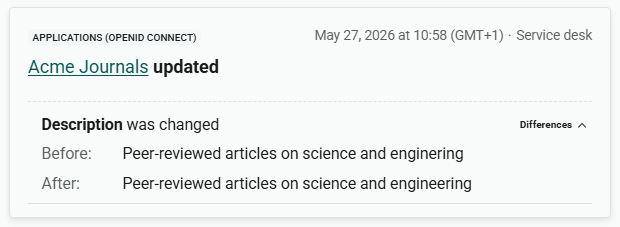
    Entry for a change to an application's description. The 'Differences' section is expanded, showing the text of the description before and after the change. We can see that a typo was corrected.
  6. To close the change history, hit the X at the top right of the overlay or click your cursor in the main screen area.