
By default, anyone with an administrator account can manage all applications and/or connections in the service provider dashboard. If this is undesirable - for example, if you have outsourced development to a technical partner, or have multiple teams responsible for different applications - you can grant access to people that you specify.
Users with the Owner role have access to manage any application. This access cannot be removed. Users with other admin roles can be granted or denied access on an application-by-application basis.
Access restrictions on an application also apply to any Keystone connection associated with that application.
There are two ways to manage admin access to an application:
From the list
-
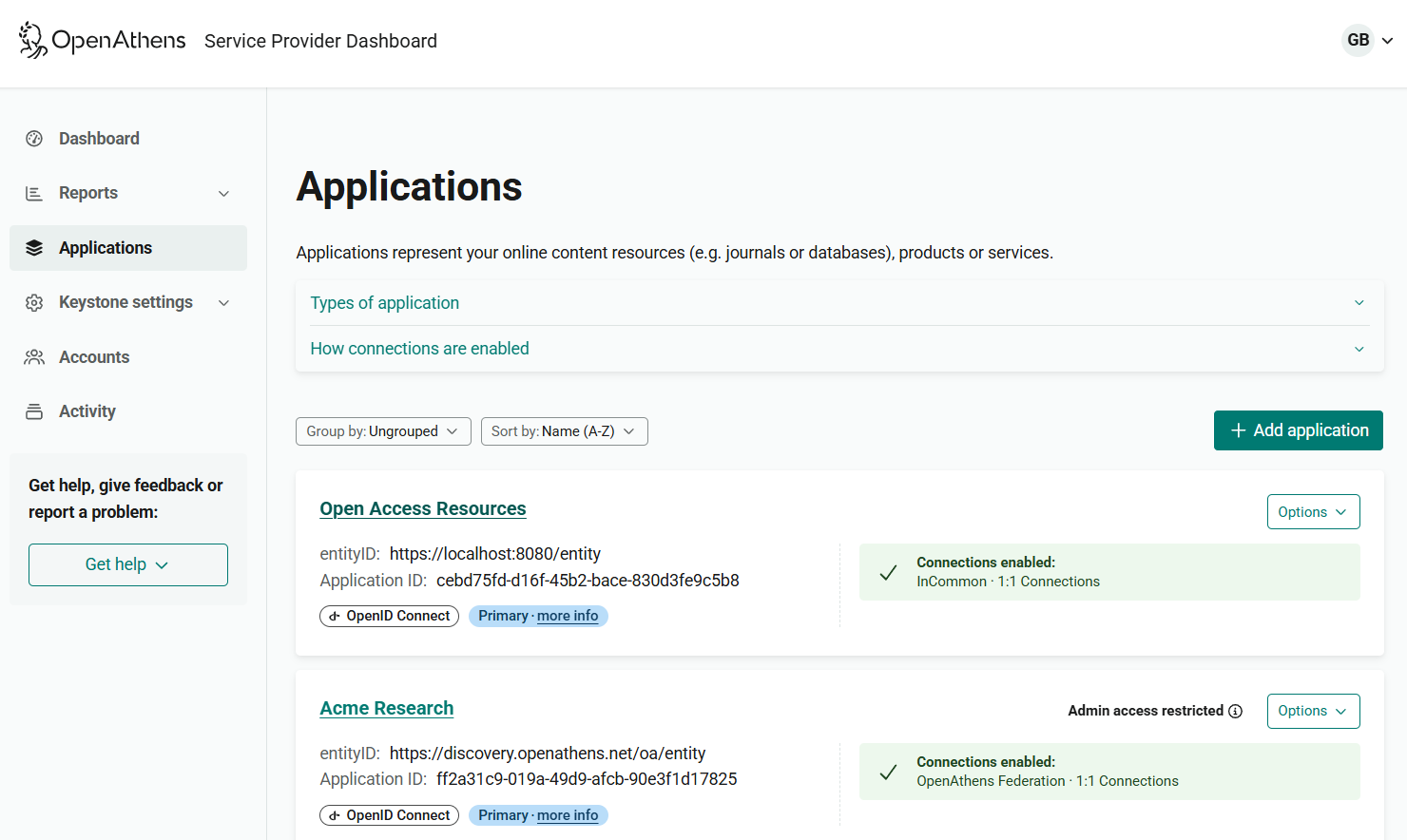
Go to Applications.
-
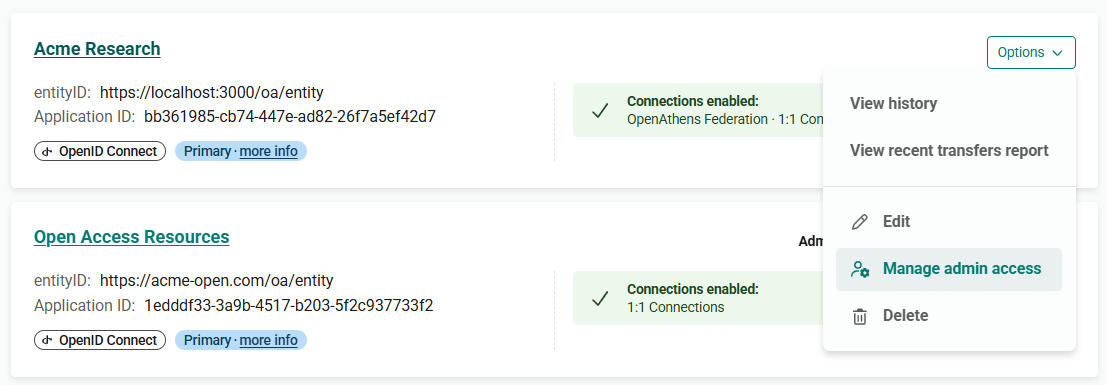
Beside the application you want to configure, open the Options menu.
-
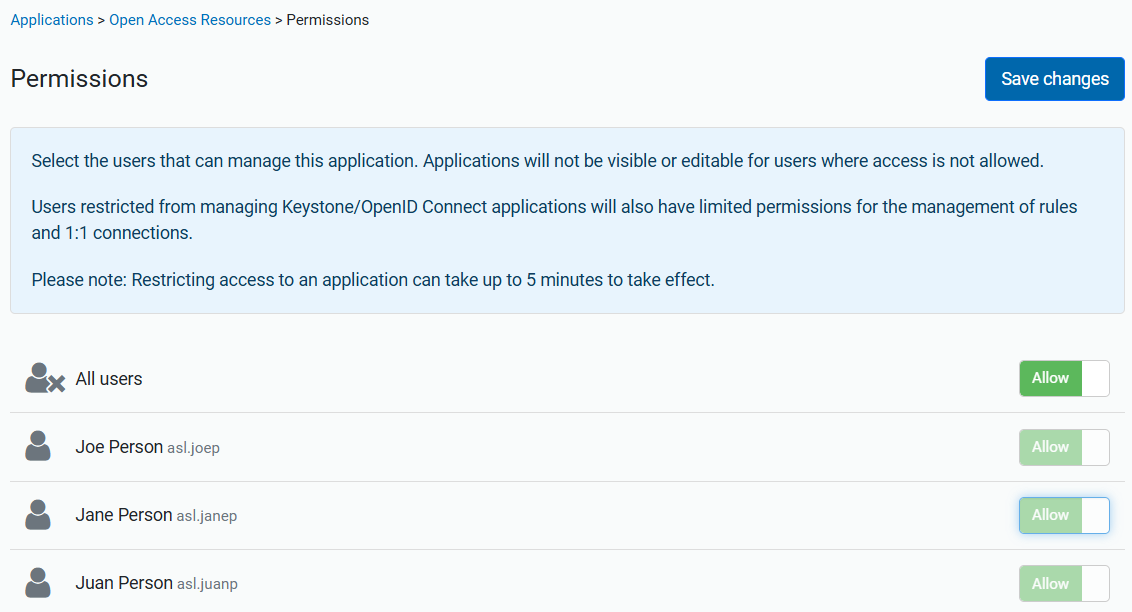
Select Manage admin access. You are taken to a screen that shows current admin access permissions.
-
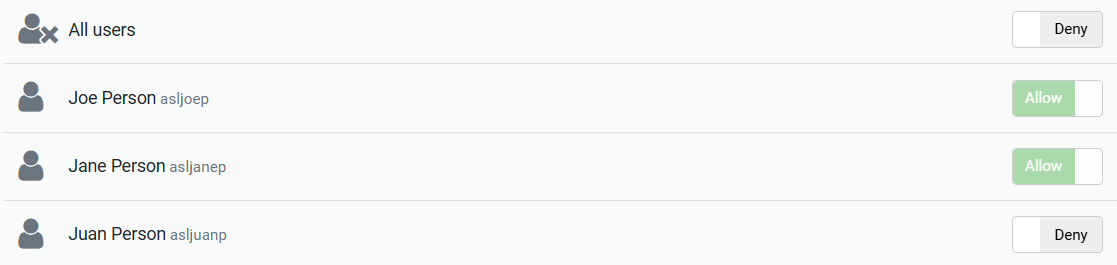
If All users is currently set to Allow, switch it to Deny. This allows you to set access for individual users.
-
Set access for each user to Allow or Deny as appropriate. (Users who have the Owner role are always set to Allow. Other users are set to Deny by default.)
-
Press Save changes.
From the application details
-
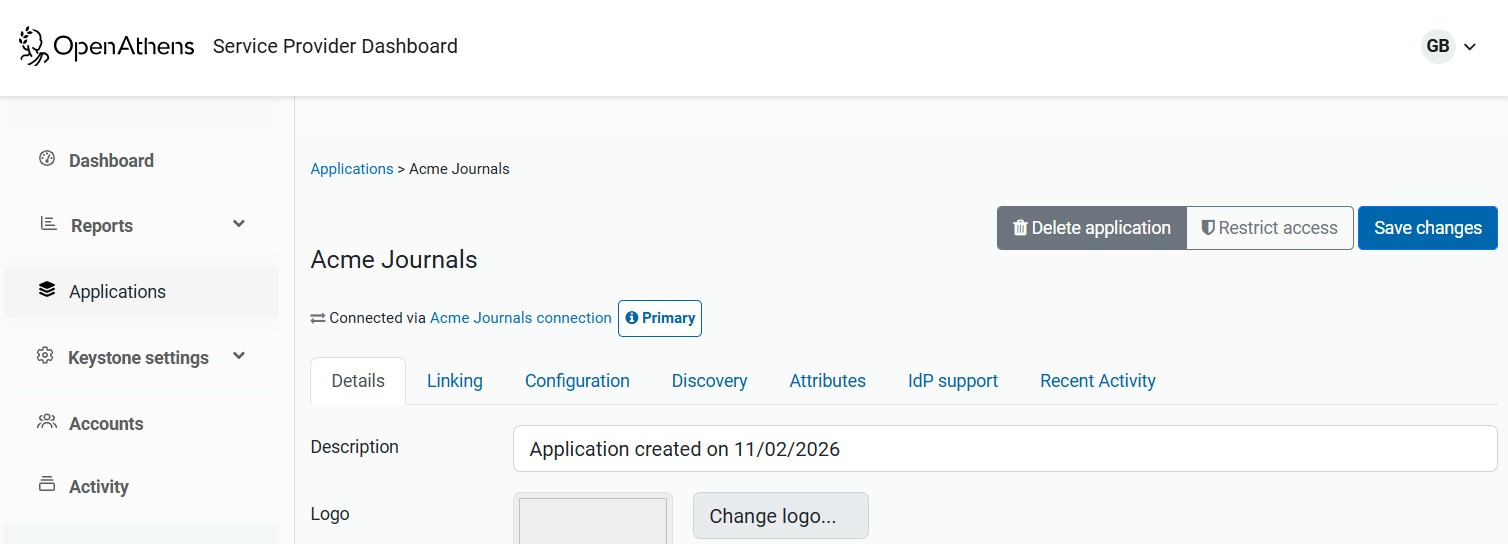
From Applications, open the application whose access you want to change.
-
Press the Restrict access button.
-
Follow the previous procedure from step 4.