
View SAML application metadata

You can view the metadata of an existing SAML application directly from the Applications list. This function is not yet available for Keystone applications.

  1. Log in to the service provider dashboard as an administrator and go to Applications.
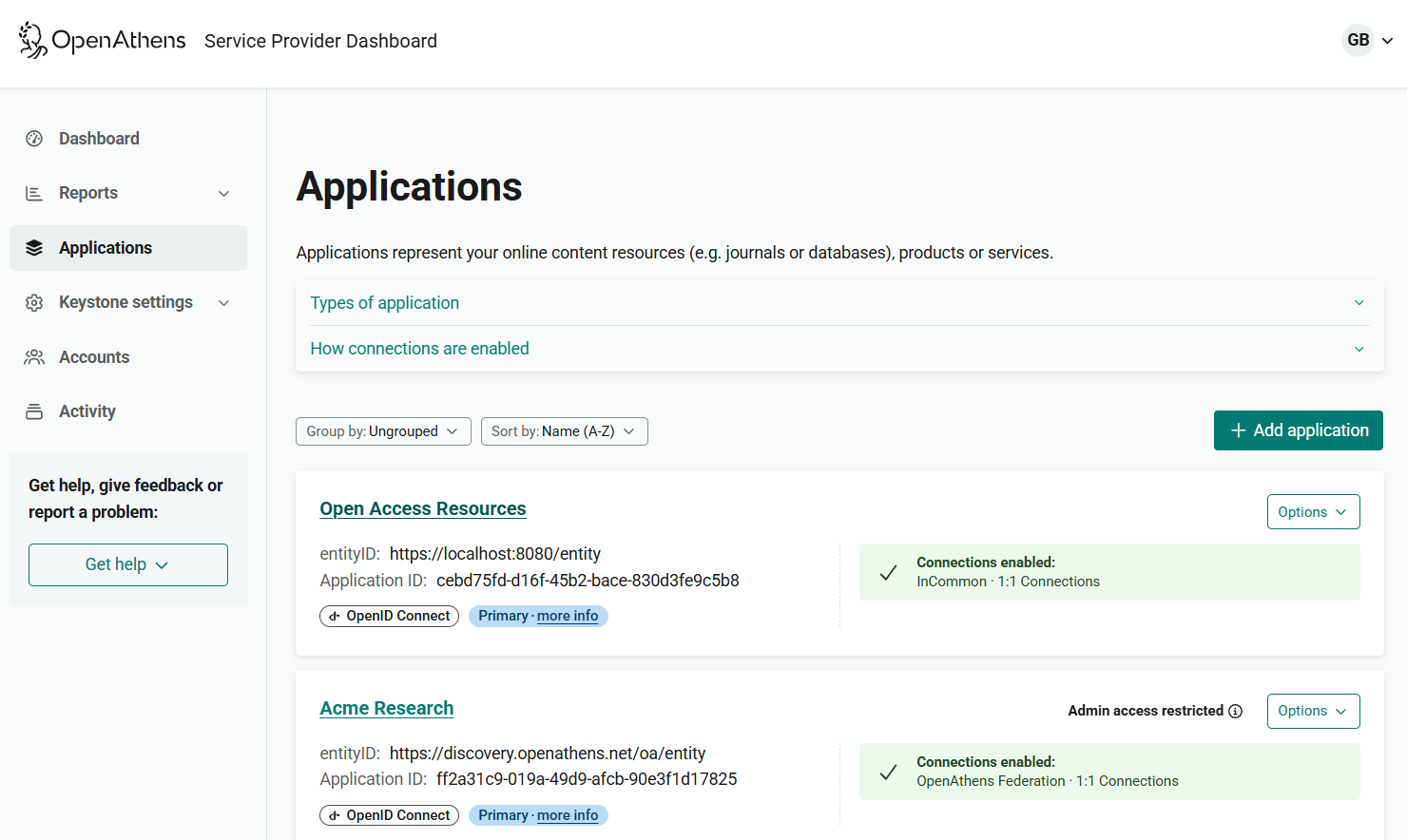
    Applications page, showing a list of current applications. Each entry includes the title of the application (which links to further details), the entityID, application ID, what type of connection it uses, whether it is the primary application, and which connections provide access. Beside each application is a drop-down menu labeled 'Optio
  2. Find the SAML application whose metadata you want to view.

  3. From the application’s Options menu, select View SAML metadata.
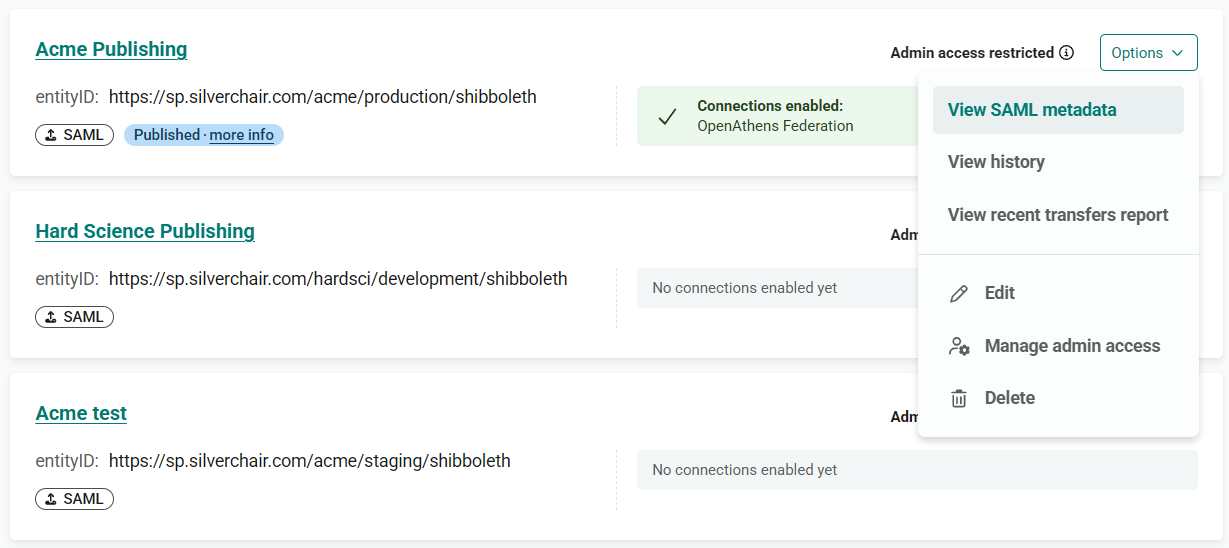
    Options menu for a SAML application called 'Acme Publishing'. The menu is expanded to show the options 'View SAML metadata','View history', 'View recent transfers report', 'Edit', 'Manage admin access' and 'Delete'. 'View SAML metadata' is highlighted.
  4. A pop-up window opens, displaying the metadata.
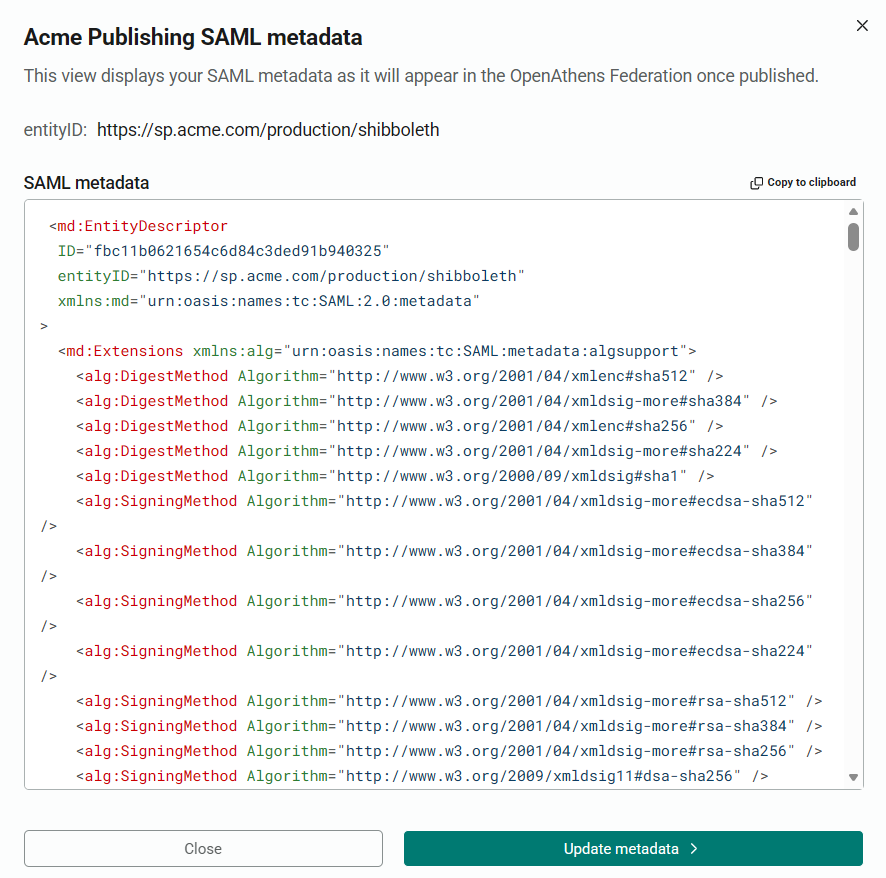
    Pop-up window titled 'Acme Publishing SAML metadata'. Advisory text reads, 'This view displays your SAML metadata as it will appear in the OpenAthens Federation once published.' This is followed by the entityID and then the XML of the metadata, displayed in a scrolling pane. There are buttons marked 'Copy to clipboard', 'Update metadata' and 'Close'.
  5. To copy the metadata, click Copy to clipboard.

  6. If you need to update the metadata, press the Update metadata button. You can then provide metadata in the same way as when creating a SAML application.