
Path to function: Management > Connections > Add > SAML
OpenAthens can connect to SAML sources such as Azure, G Suite, OneLog, Shibboleth and similar so that you do not have to issue personal accounts for your users (you will still need your OpenAthens administrator account).
As well as the ability to use local accounts instead of maintaining a separate set of credentials, accesses to federated resources that already involve discovery (identifying the user’s home organisation) will take the user directly to your SAML login.
Preparation
Before you start, you need:
-
Access to the OpenAthens administration area at the domain level
-
A SAML source that supports TLS 1.2 and above and follows the SAML standard
-
Metadata of the SAML source, either as a file or as a URL
-
Access to the configuration of the SAML source
If you are migrating from an alternative IdP such as Shibboleth, also see Migrating from your own IdP.
If you need technical help, contact your IT team or OpenAthens support. While our team will help as far as possible, they can fully support only the OpenAthens end of the connection.
Add the connection in OpenAthens
-
Log in to the OpenAthens admin area as the domain administrator.
-
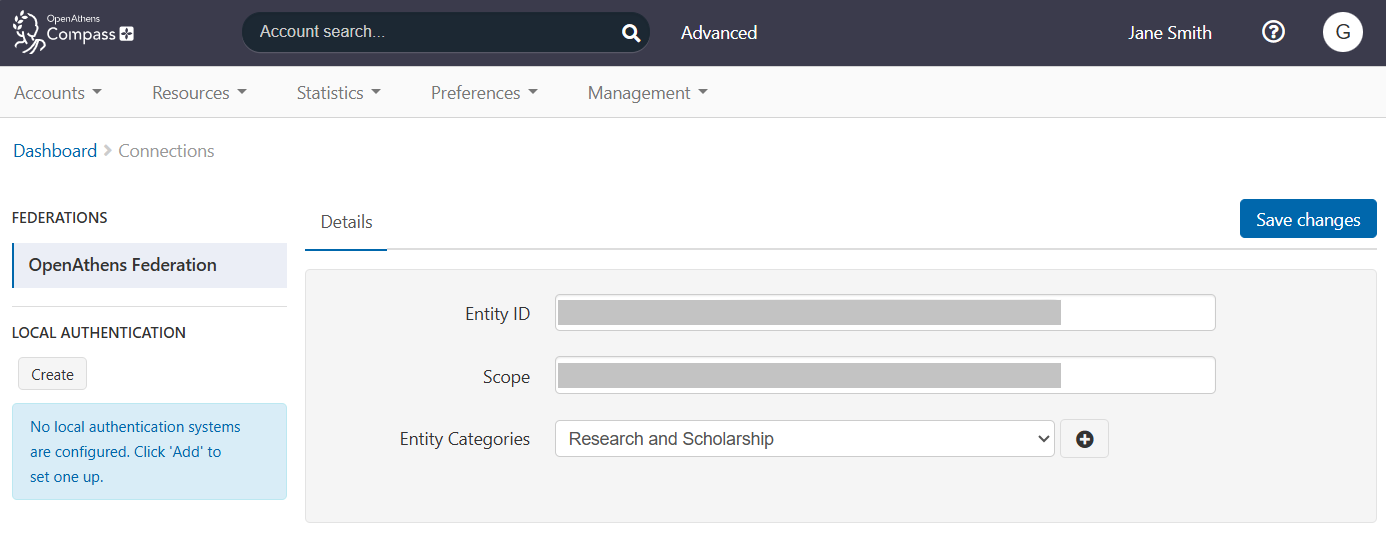
Go to Management > Connections.
-
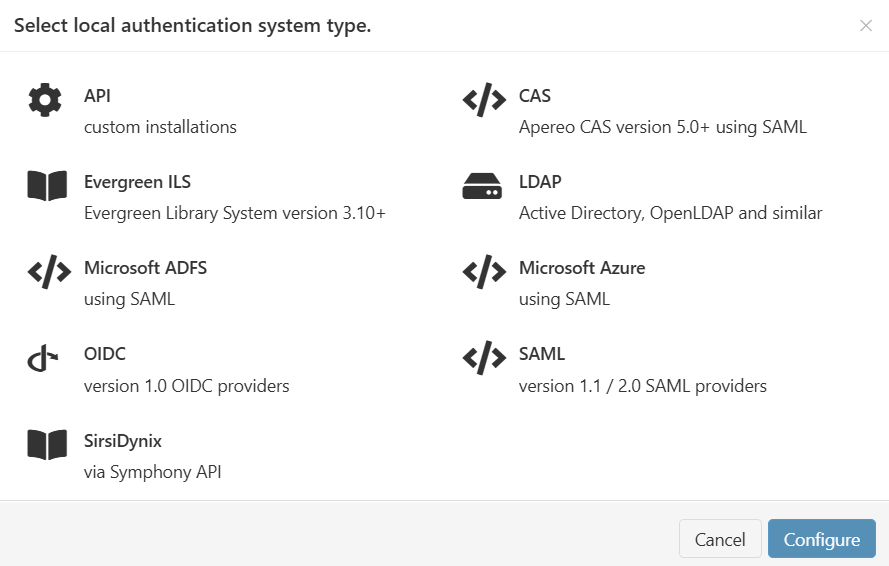
Under Local authentication in the left sidebar, press Create. A pop-up opens, showing available connectors.
-
Select SAML and press Configure.
-
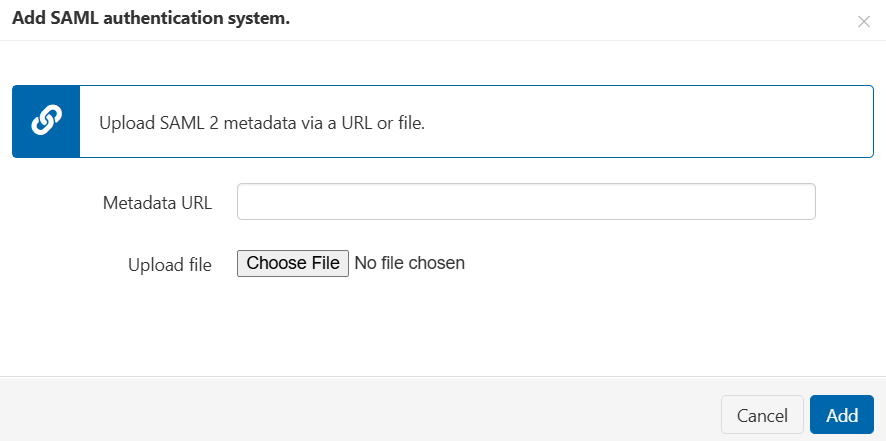
Either:
-
Enter the URL of the SAML metadata in the Metadata URL field. A metadata URL typically looks something like
https://YOURDOMAIN/path/metadata. The URL must be accessible outside your network. -
Press Choose File and upload the XML metadata file for your SAML source.
-
-
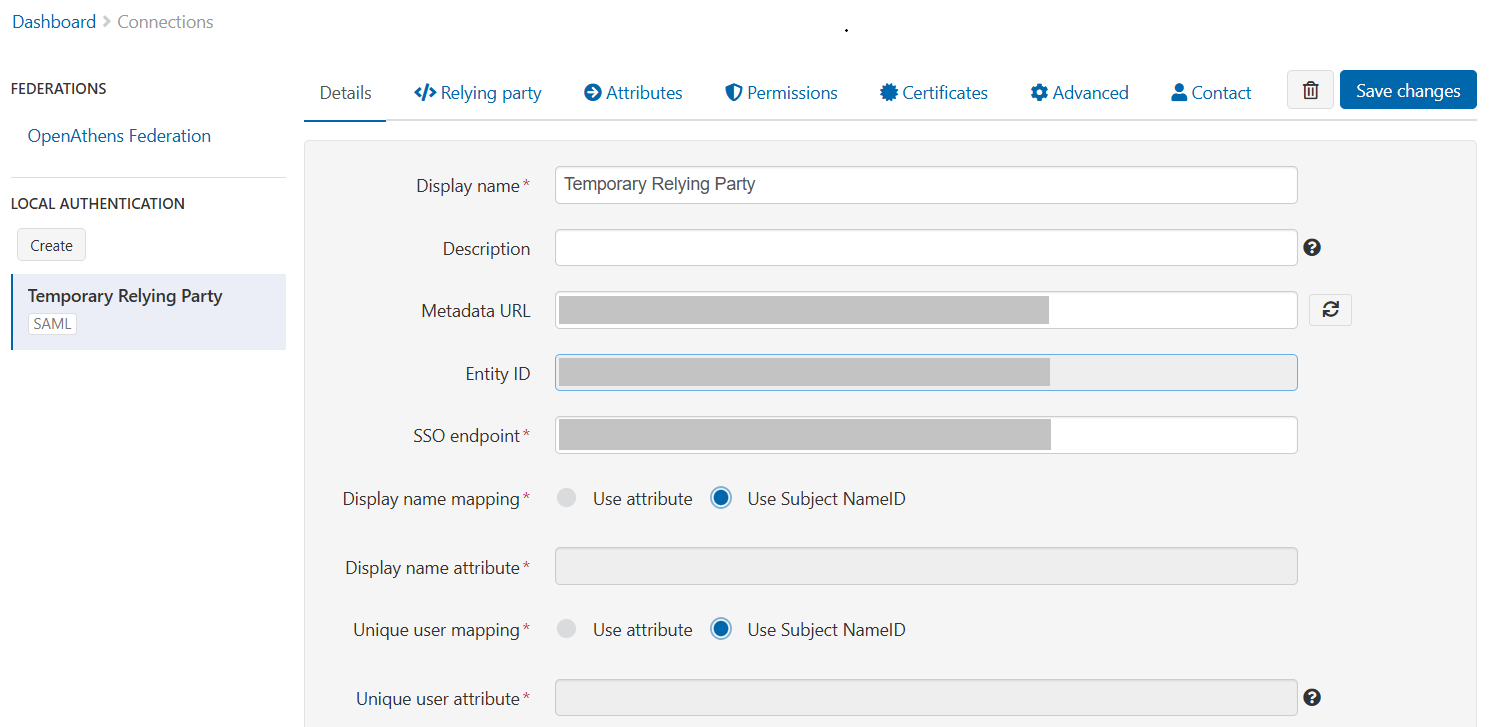
Press Add. The connector is created. You can now view or edit its details.
-
Set Unique user attribute to match the attribute you will be sending as the user identifier. You can change this later, but you must provide a value to save the connection.
-
Set Display name attribute to an attribute that identifies the connection. If you are sending only one attribute, make this the same as the user identifier. Again, you can change this value later.
-
Set both Display name mapping and Unique user mapping to Use attribute.
-
Complete other fields as required (see Detail fields, below).

-
At this time, do not set the Status of the connection as Default.
-
Save your changes.
-
Lastly, go to the Relying party tab and copy the Metadata URL shown there. You will need this URL to configure the connection in your SAML source.

Detail fields
|
Field |
Explanation |
|---|---|
|
Display name |
The name of the connection, as it will appear in our authentication point when there is a choice of connector. Defaults to the name specified in the SAML metadata. |
|
Description |
The description of the connection as it will appear in our authentication point when there is a choice of connector. |
|
Metadata URL |
Where the SAML metadata is published. Populated only when metadata is loaded from a URL, this field allows easy updates to the connection if your SAML system changes. |
|
EntityID |
The entity identifier of your SAML instance, typically something like |
|
SSO endpoint |
The login address, typically something like |
|
Display name attribute |
The attribute you specify here supplies the value displayed in account lists and the audit trail. Something human readable is recommended. It can be the same as the Unique user attribute. |
|
Unique user attribute |
The attribute you specify here must supply a persistent value unique to the user within the current user set and should supply a pseudonymous value unique to that user for all time. This is used by the system to tell users apart and also used in the generation of targetedIDs and statistics. It does not have to be the username entered at your login point. If using the SAML NameID here, the requirement for unique and persistent limits the type to:
|
|
Status |
Not Live = connection can be used only in debug mode. If the Live status is turned off, the Visible and Default settings are ignored. The connection will not be available through the standard authentication point, although it is not disabled completely. Live and Visible (if this is the only local connection) = connection can only be used in debug mode. Live and Visible (if there are multiple live and visible connections) = users are offered a choice of connections, including this one. There is a domain preference to include OpenAthens accounts or not. Live and Visible and Default = this is your only login option and users will be sent directly to your login whenever the organisation is known. A successful authentication will tell the authentication point to remember that location. A failed authentication will clear the preference. Debug mode will not show other login options. Changes to the status usually take effect within moments. |
|
Create local accounts |
Automatically: any user authenticated by your system and passed back to us is deemed OK and will be accepted by the system. Manually: only user IDs you have previously uploaded via the list page will be accepted by our systems. |
|
Remove local accounts |
This setting controls when local account data will be automatically cleared from the system and is the number of days from the last time the account last signed in. Pre-mapped accounts that have not been seen are also cleared. The setting can be from 1 to 365 days and represents the number of complete days that have passed since the date the account last signed in, i.e. does not include the day of the last sign-in in the count. See also: How to modify a local account.
|
|
Salt value |
The salt used to generate a targetedID for users authenticated by this connection. You might edit the salt if you are upgrading from something like Shibboleth so that your users can have the same targetedID value when they change systems. If you set it to blank, the connection will use the same salt as your OpenAthens accounts. Avoid modifying the salt after you go live, which will change the user identifiers seen by service providers. |
Configure the connection in your SAML source
Refer to the documentation of your SAML source for how to configure it to connect to a service provider. There is also help for some of the more popular SAML sources, including Azure and Google, in our third-party apps documentation.
You will need to provide OpenAthens metadata to your SAML source. Use the Metadata URL you copied from the Relying party tab of the connection. This URL looks similar to https://login.openathens.net/saml/2/metadata-sp/domain.com/la/123456 .
At minimum, you need to release a unique user identifier. This identifier can be sent as an attribute, or the SAML NameID, but it must be persistent and unique among current users. Ideally it would be pseudonymous and unique for ever (i.e. never assigned to a new user).
Depending on your library's needs, the unique user identifier may be sufficient. However you will usually want to release more information so that local attributes can be mapped to OpenAthens attributes and used for organisation, statistics, resource access, display names and resource allocation. For example:
-
First and last names or a display name to help the library identify users (the unique user attribute shouldn't be suitable for this)
-
Email address to help the library contact users and, in certain cases, release that data to service providers
-
An attribute indicating group membership, to let the library assign different permission sets to different groups of users based on rules
-
A department or OU name for statistics to aggregate on
In all cases, the library will need the names of the attributes for the next part of the setup. Attribute names are case sensitive and may not contain spaces.
Configure mappings and permission sets in OpenAthens
The final two areas to configure are permission set rules and attribute mappings:
-
Permission set rules so that your users as assigned an appropriate set of resources
-
Attribute mappings so that OpenAthens can make use of data passed it by your source
-
OpenAthens will cache these attributes when the user signs in, so changes in your directory won't be picked up until the next time the user starts an OpenAthens session.
-
When you're ready to go live, set the Status of the connection to both Live and Visible. Save your changes. Your new connection should be testable a few seconds later.
How to test
Discovery is not available until you set the connection as Live and Visible, so that users do not get offered options that are not ready to be used. To test your connection before going live, you will need to use debug mode to make the connection selectable by you.
Once you have tested and are happy, you can set the connection as Live, Visible and optionally Default (where available), then save. This will make it live for your users within a few seconds.
Multiple connectors and OpenAthens accounts
This type of connector is best used as the default connection. In this mode, when a user arrives at our authentication point with your organisation known, such as would happen if they select it at a resource's login, use a WAYFless URL, use the Redirector or have previously authenticated successfully, they are passed directly to your login without seeing our authentication point.
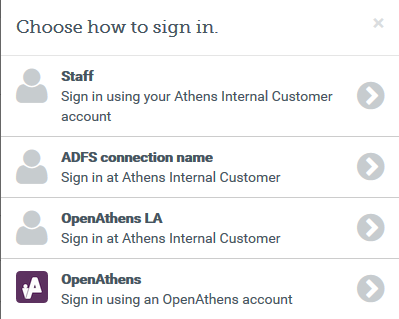
If you need to use multiple connections, or OpenAthens accounts alongside local accounts - e.g. if you have a group of users that are not in your directory - then you can set the connection as Live and Visible but not Default, and set it to allow OpenAthens accounts via the setting on the domain preference page. In this mode, when the user arrives at the authentication point with your organisation known, they can select the connection they want to choose from all Live and Visible local connections as well as OpenAthens accounts. The authentication point remembers their choice for next time.
Multi-valued attributes
With multi-valued attributes, such as the memberOf field in ADFS, the interface is unable to display all values and will display only one. However, all values are read and cached, so are available for functions like permission set rules and attribute release.
Other configuration options
Certificates
In the Certificates tab of the connection, you can add a second certificate. This is useful if you need to change a server certificate at your end and want to minimise downtime for your users.
Advanced
In the Advanced tab, you can make several changes that are rarely necessary:
-
Switch between SAML versions, should you have a source that can only handle the older SAML 1 profile
-
Switch the profile from Redirect to Post if your source insists on it
-
Enable signing of authentication requests (SHA-1 or SHA-256) if your source requires it
-
Enable the SAML
forceAuthnoption (forces your local source to re-authenticate any time the user is sent there - e.g. where users can have multiple affiliations within a consortium and your SAML source's session management makes it difficult for them to change)
Anything to watch out for?
When you use the refresh button 
If you are planning to pre-upload user identifiers, you will need to have at least one local account visible in the list to access the upload button. Do not delete all your test logins until at least some of your pre-mappings are uploaded.
Pseudonymous?
We recommend using pseudonymous identifiers for the unique user attribute. This avoids potential problems with data protection legislation, as the identifier will live on for a time in the audit trail after other mapped attributes are cleared.